This tutorial explains how to recover a file saved locally that may not have uploaded properly to Z-drive, resulting in an "XML error". You will learn the steps to locate, rename, and upload the most recent version to ensure proper document management.
1. Introduction To File Recovery
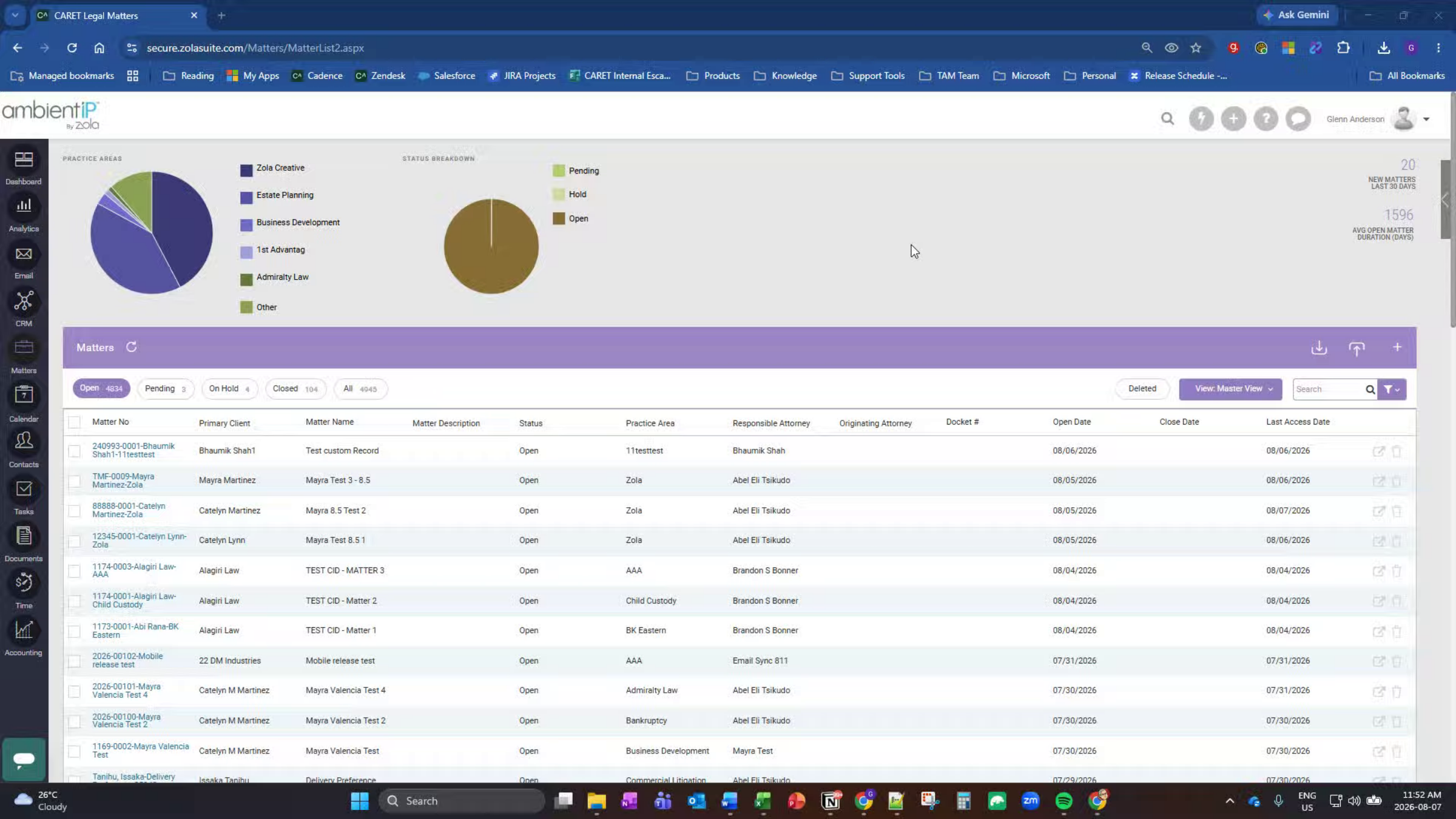
Today we are going to show you how you can recover a file that is saved to your local machine that may not have properly uploaded to Z-drive.
2. Understand Upload Issues And Recovery
If there are network or storage system connectivity issues, the most recent version of a file you were editing may not upload properly to Z-Drive. However, a copy is always stored locally, and usually retained for 7 days. This process will show you how to recover that most recent version so you can open it in Z-Drive and have it properly linked to the matter in CARET Legal.
3. Navigate To Relevant Matter
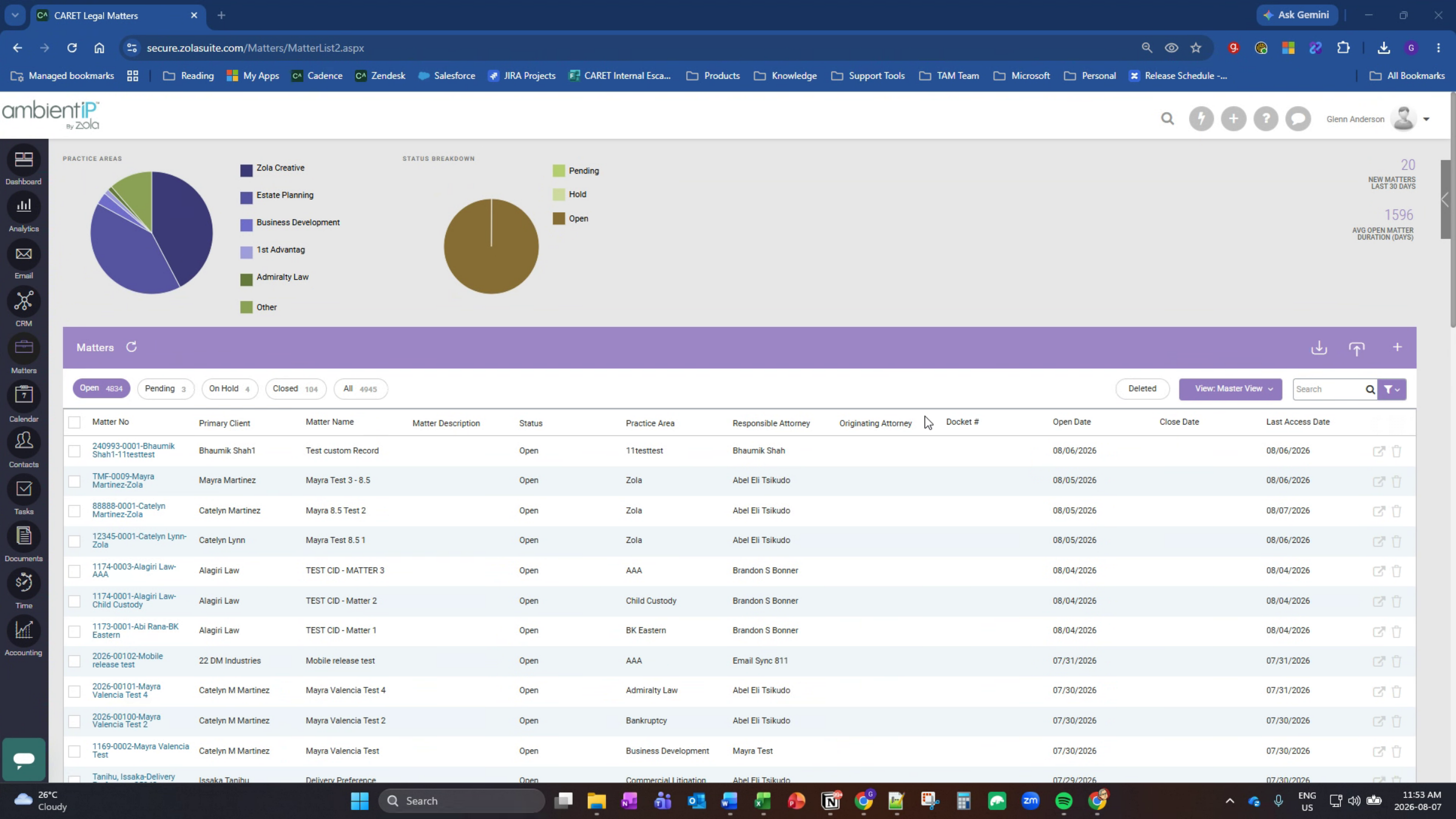
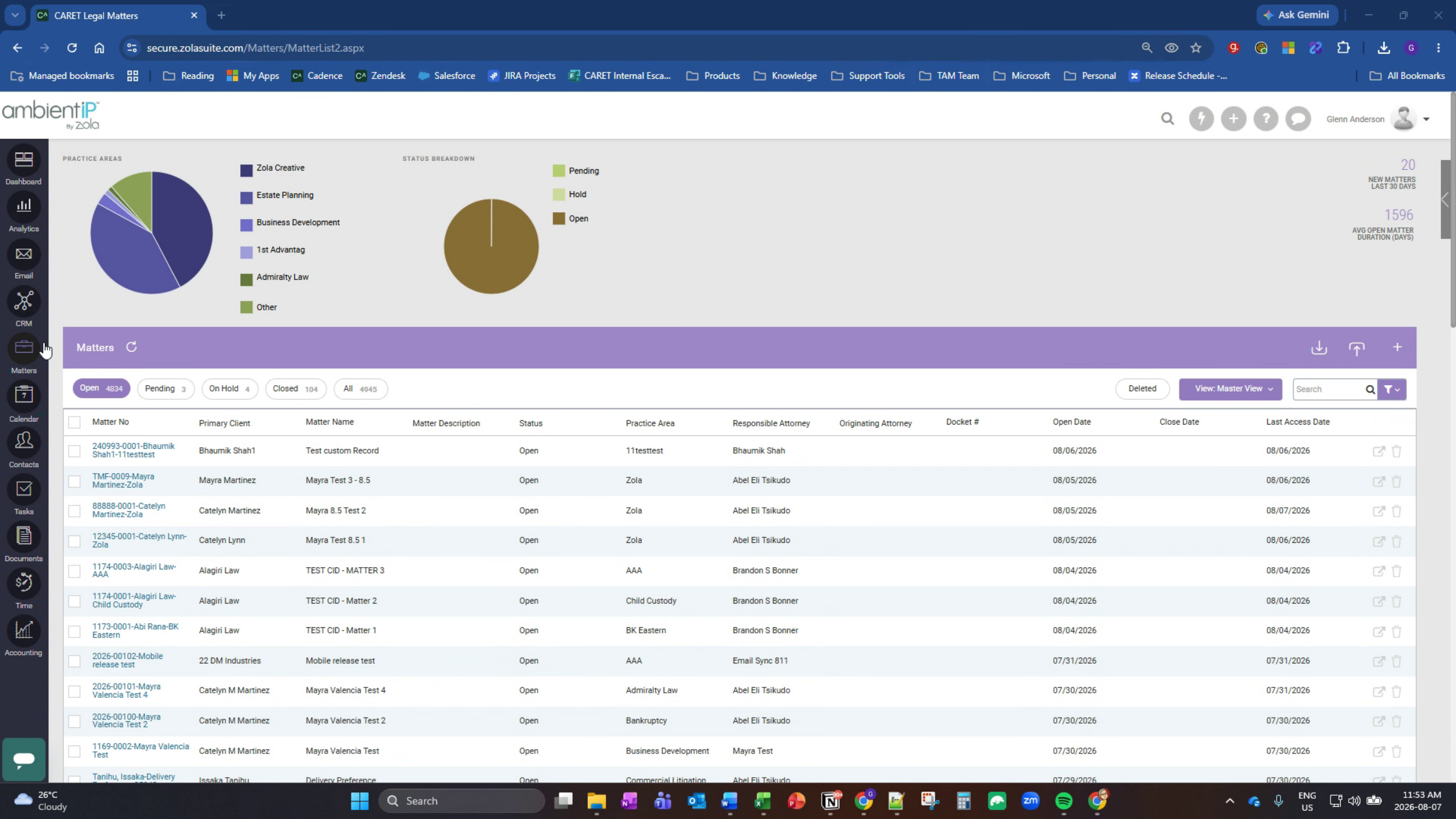
First, use the Matters tab and navigate to the matter that contains the document in question. It is possible that you click on the document within the documents tab of the matter and Z-Drive fails to open, or you may only be able to open a previous version of the document, not the most recent version you were editing.
4. Open Z Drive Login Form
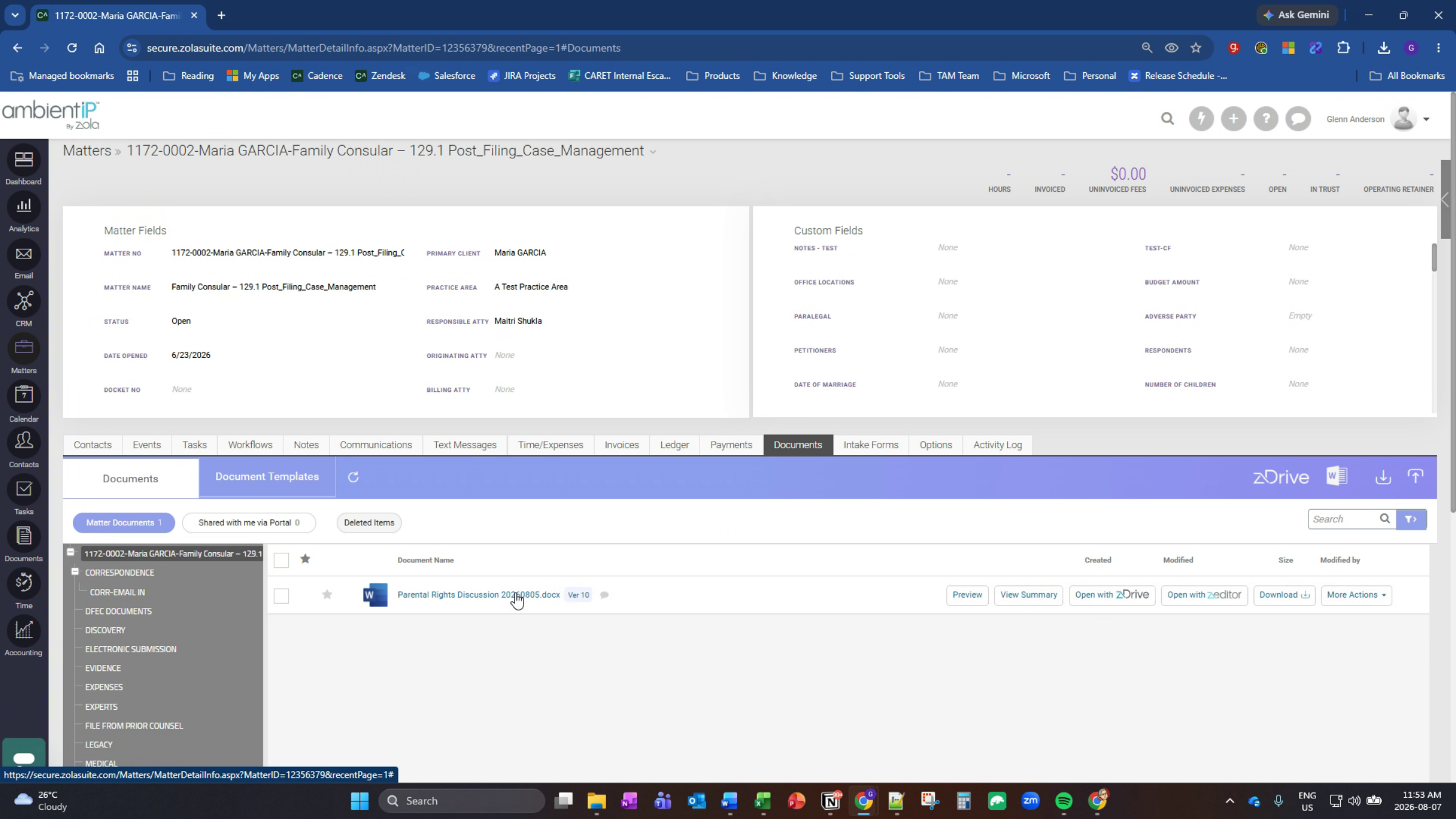
From the documents tab, note the name of the document in question. You will need to know the exact name of the document in order to complete the recovery process. Next, navigate to your system tray in the bottom right corner and locate the light blue Zola Suite Z-Drive icon. Right-click the icon, and select "show the login form." This should display the Z-Drive login window.
5. Review Advanced Settings
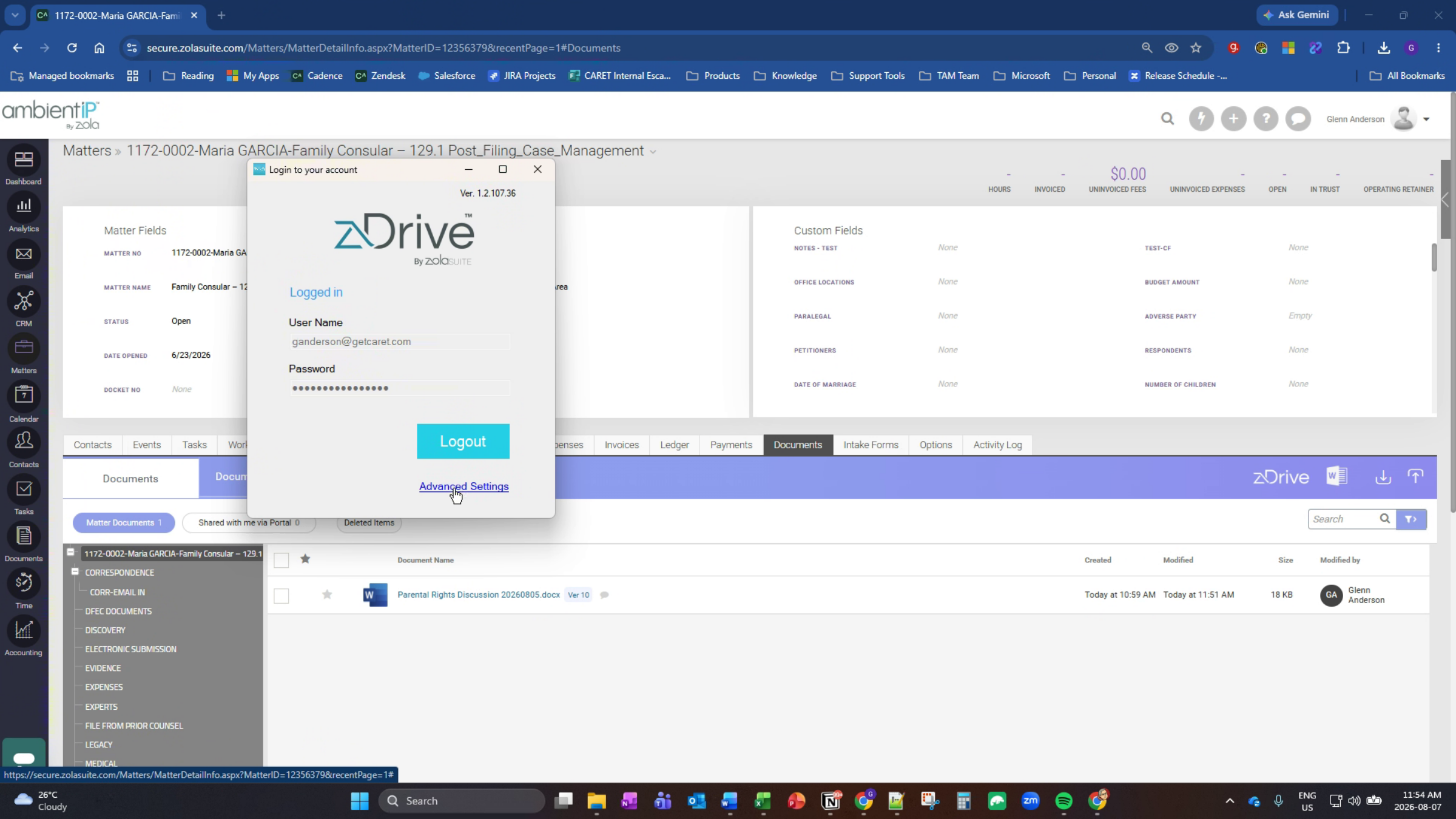
Click on Advanced Settings. In Advanced Settings, you'll see the information where the database is located for Z-Drive, where your documents are stored locally, and the document upload delay and document archive period. Documents in this case will only be saved for 7 days. If this number has been changed to only 1 day or 2 days, you may not be able to recover the most recent version of the document. We recommend you leave this value at seven days, which is the standard.
6. Copy Local Document Path
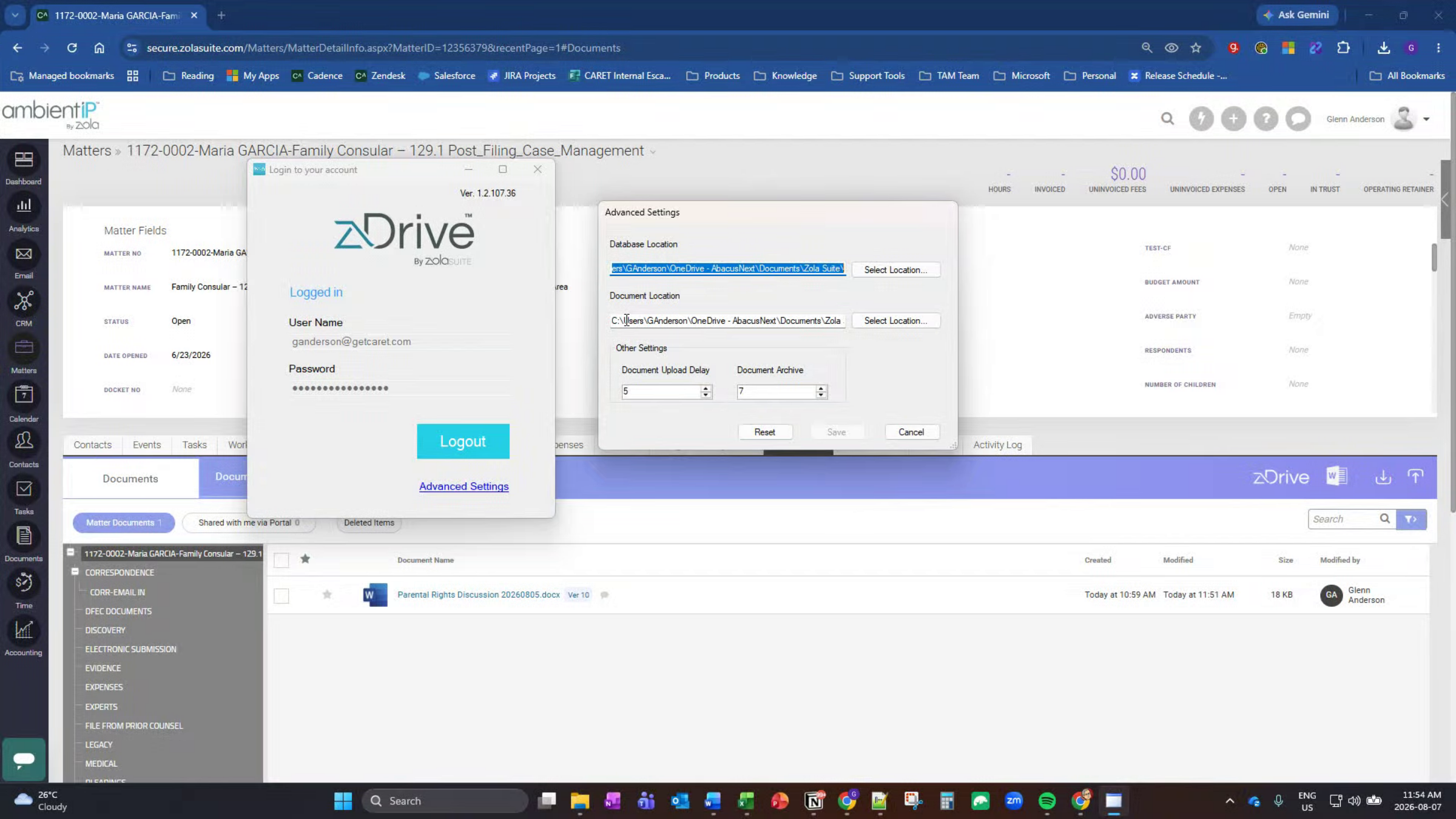
Under document location, you want to take your mouse, left click and hold, and drag it across this entire section so you copy the document location. This iis where documents are stored locally prior to being uploaded to Z-Drive. Right click the full path, and click copy.
7. Exit Settings And Open File Explorer
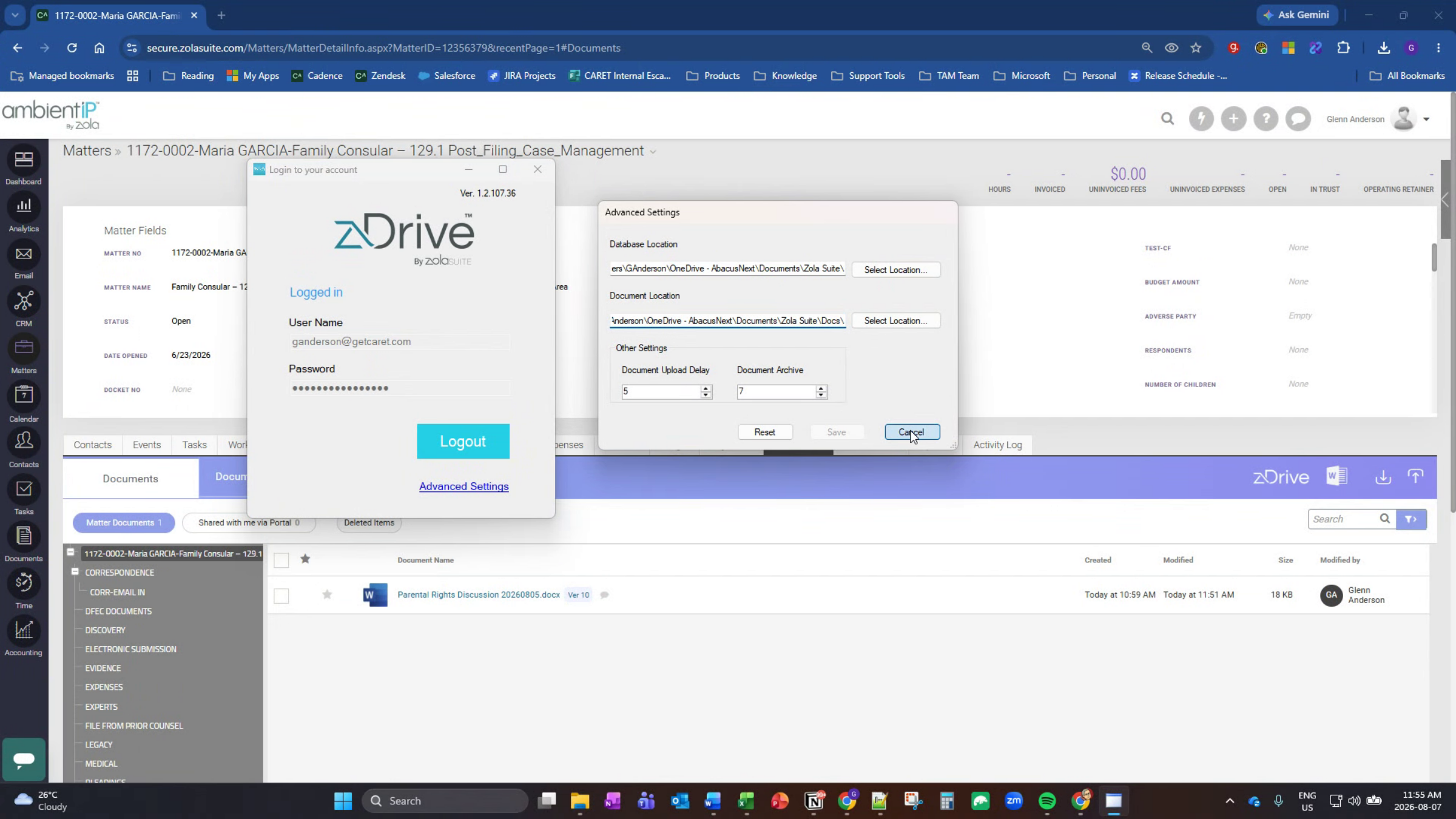
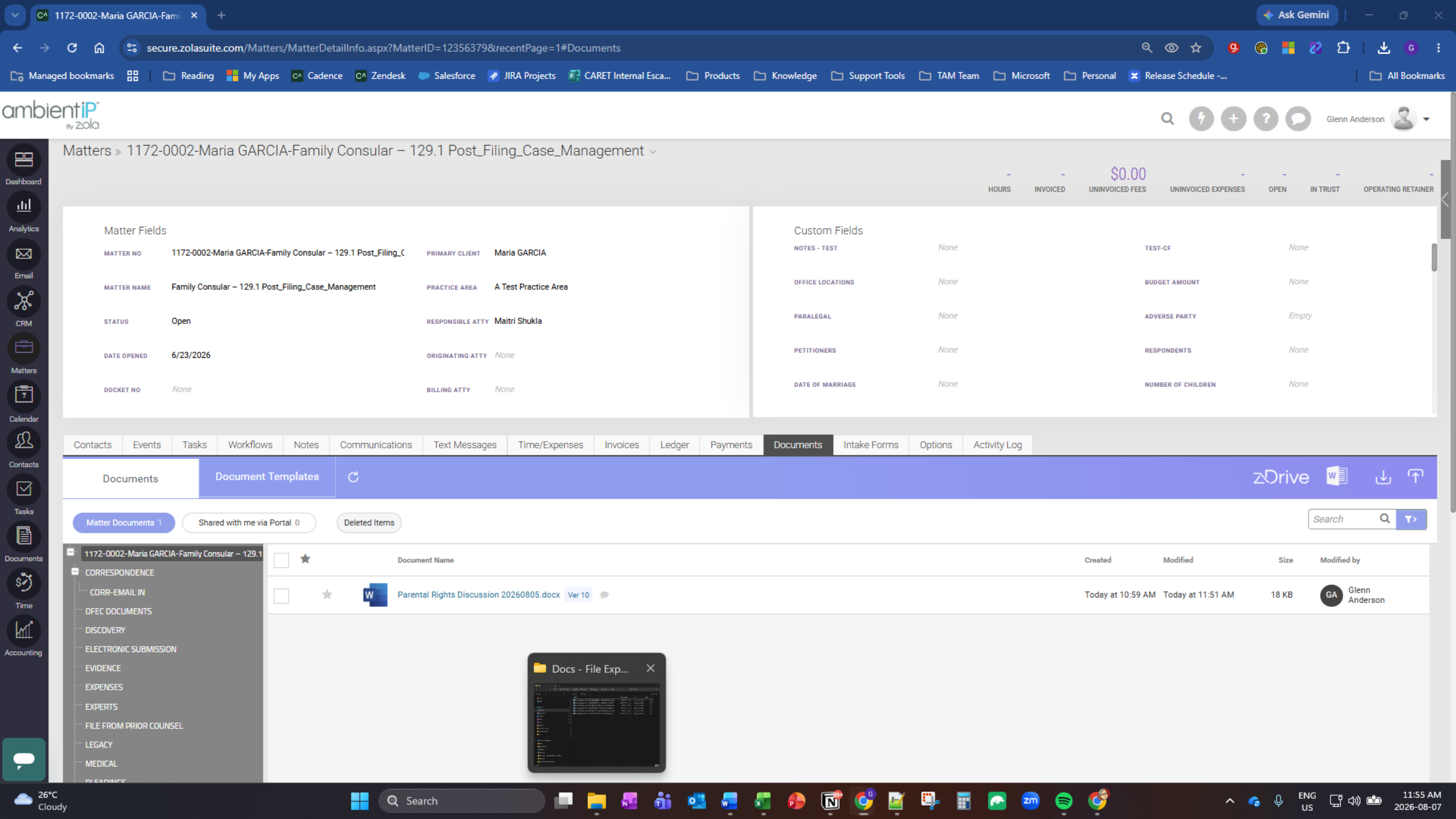
Click cancel, X out of this, and now you want to open file explorer.
8. Access File Explorer
9. Paste Path In File Explorer
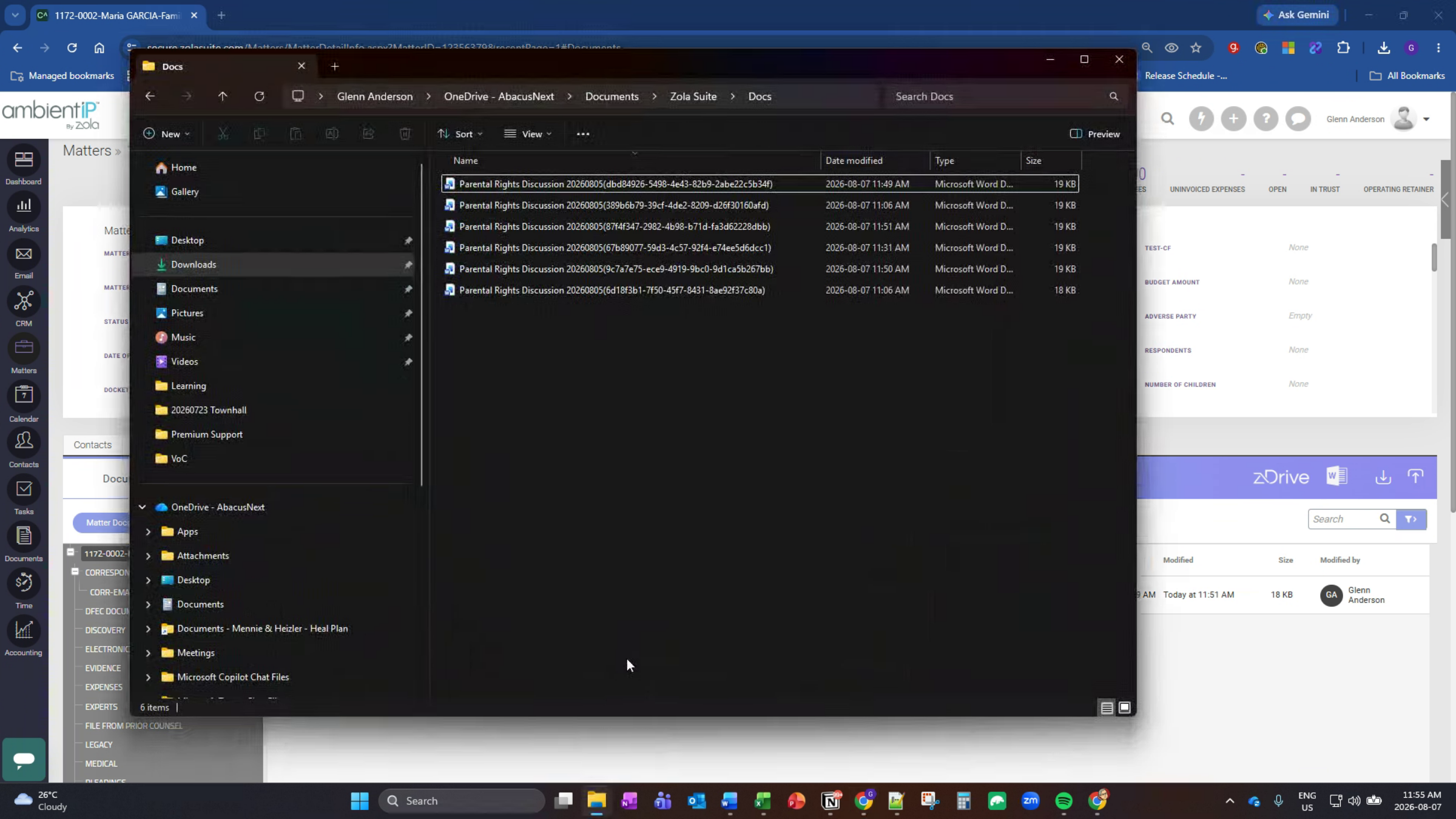
In File Explorer, navigate to this location. Click in the upper bar, hold the Control key, and press V on your keyboard to paste the copied address into the address bar in File Explorer.
10. View And Sort File Versions
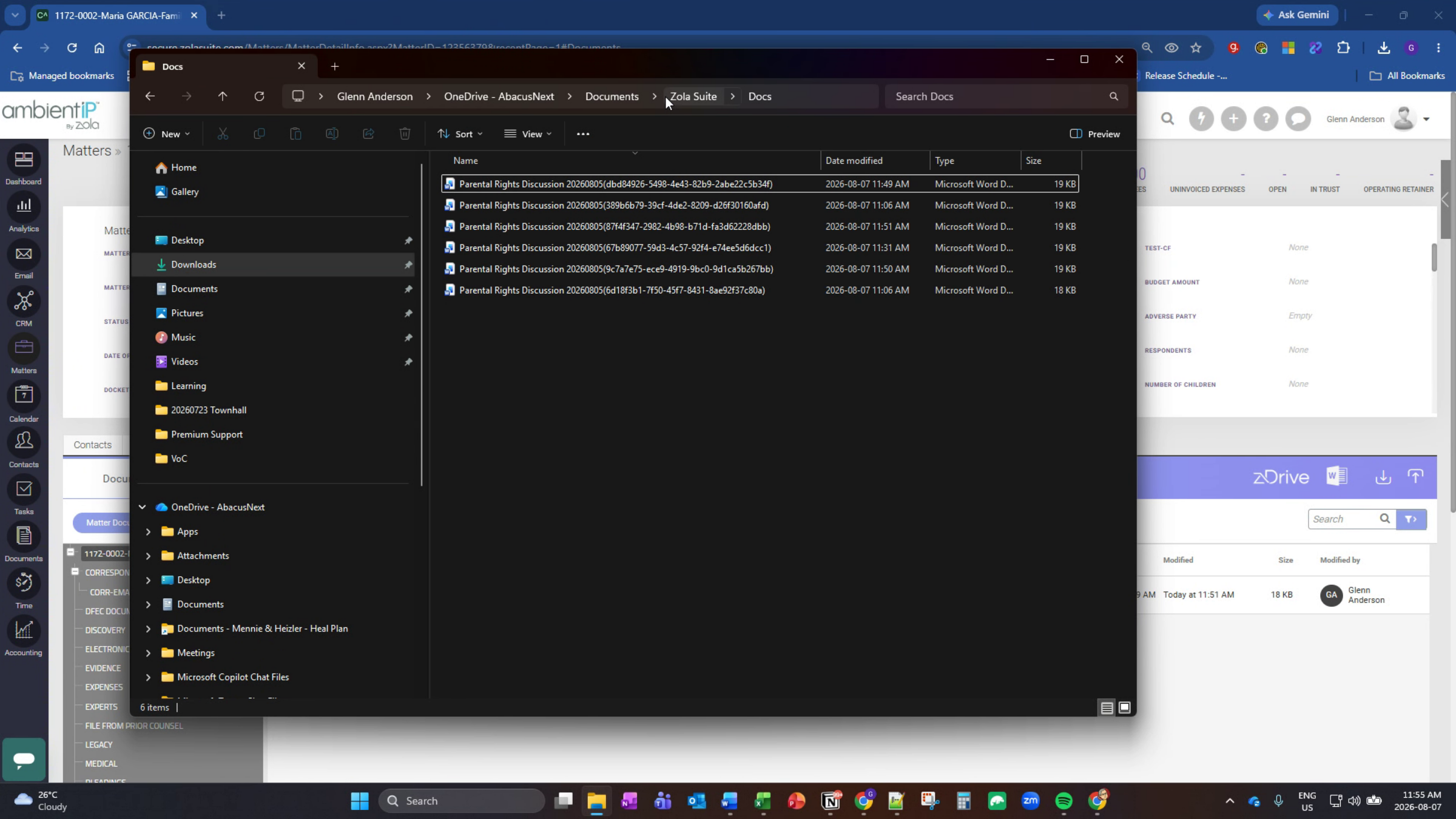
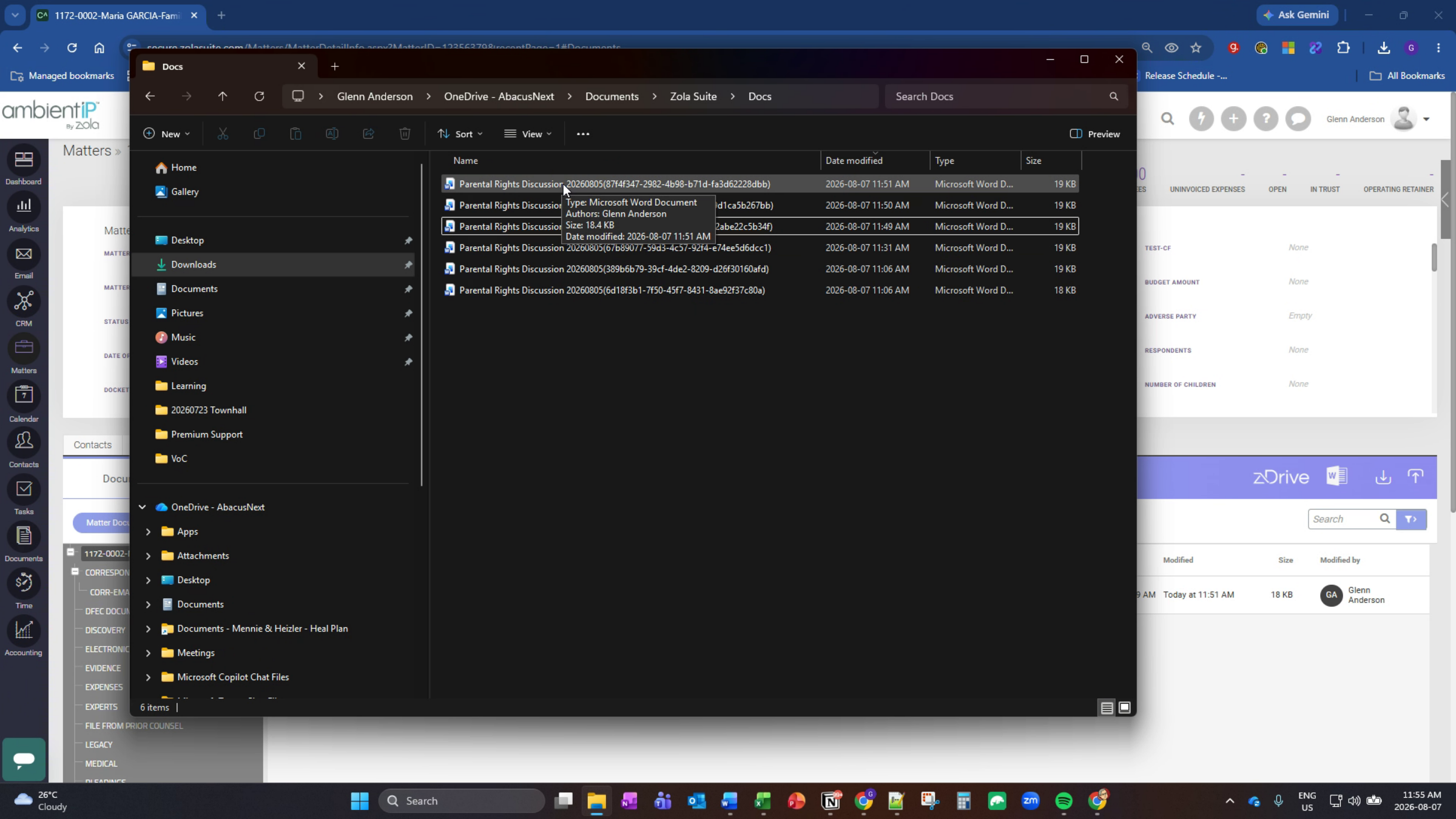
Click enter. You will now see the different versions of files that you have. In this case, there is only one file associated with this particular matter, and there are a number of versions right here. You want to find the most recent version of this file. It's easier sometimes to click on date modified so that it sorts them. The most recent version usually floats to the top, so that would be this version right here at 11:51 a.m.
11. Rename File For Upload
You then want to either slowly double click on this area, or you want to right click, show more options, rename.
12. Remove Version Number From Filename
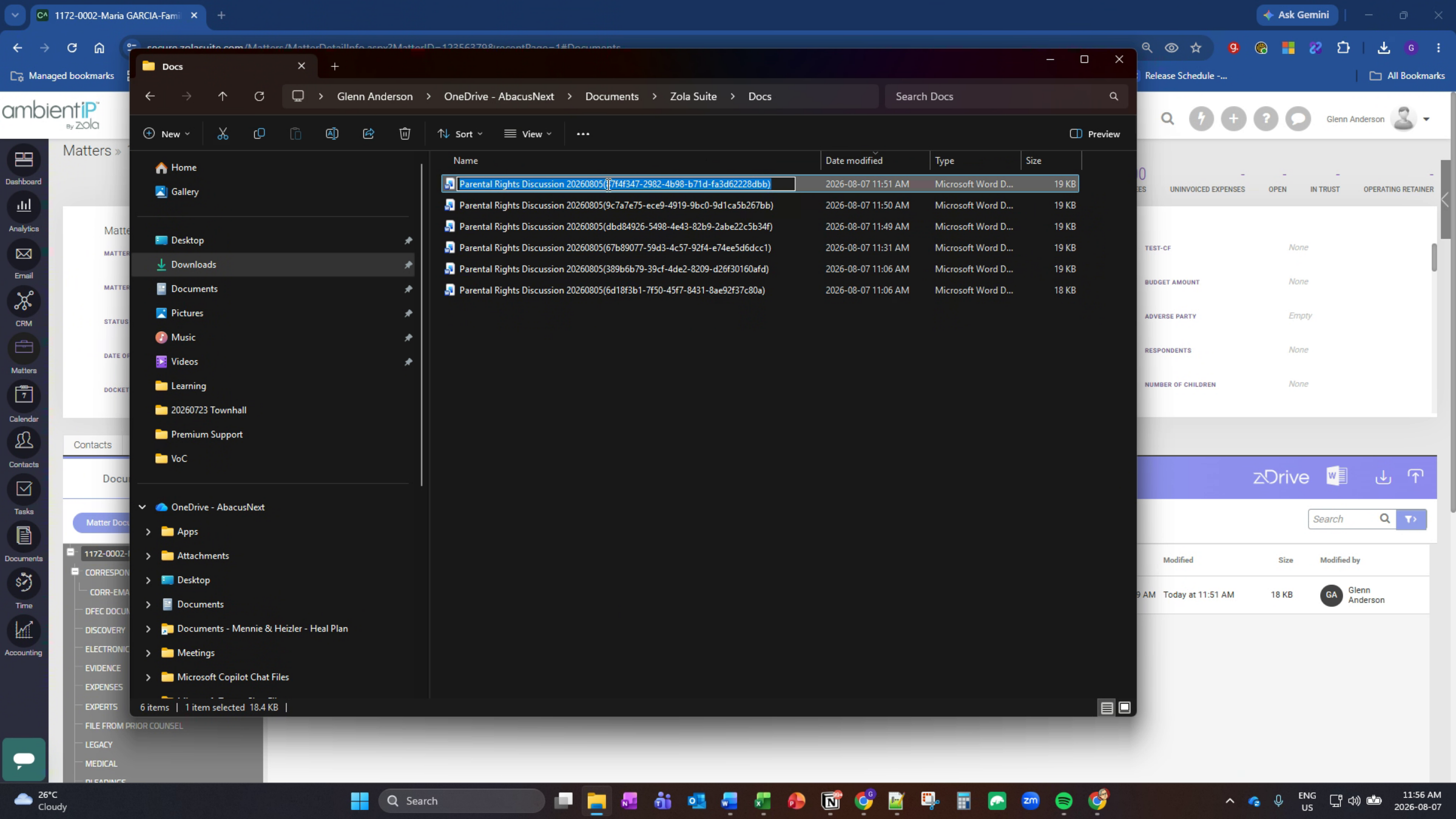
You need to rename the file by taking the actual file name and removing brackets and this version number at the end of the file name. Highlight that with your mouse, click delete, and then click outside the area.
13. Prepare File For Copying
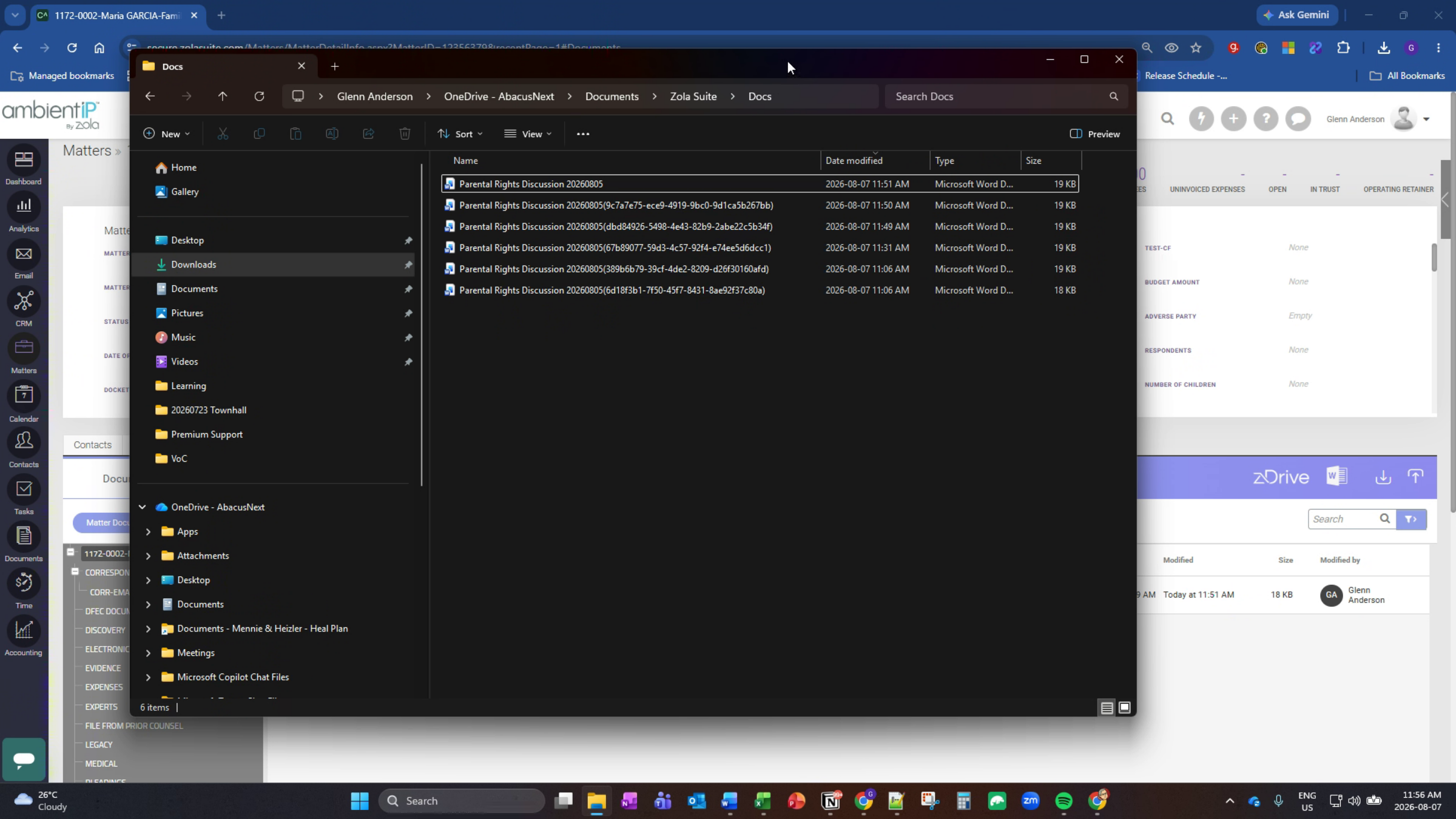
14. Upload And Confirm New Version
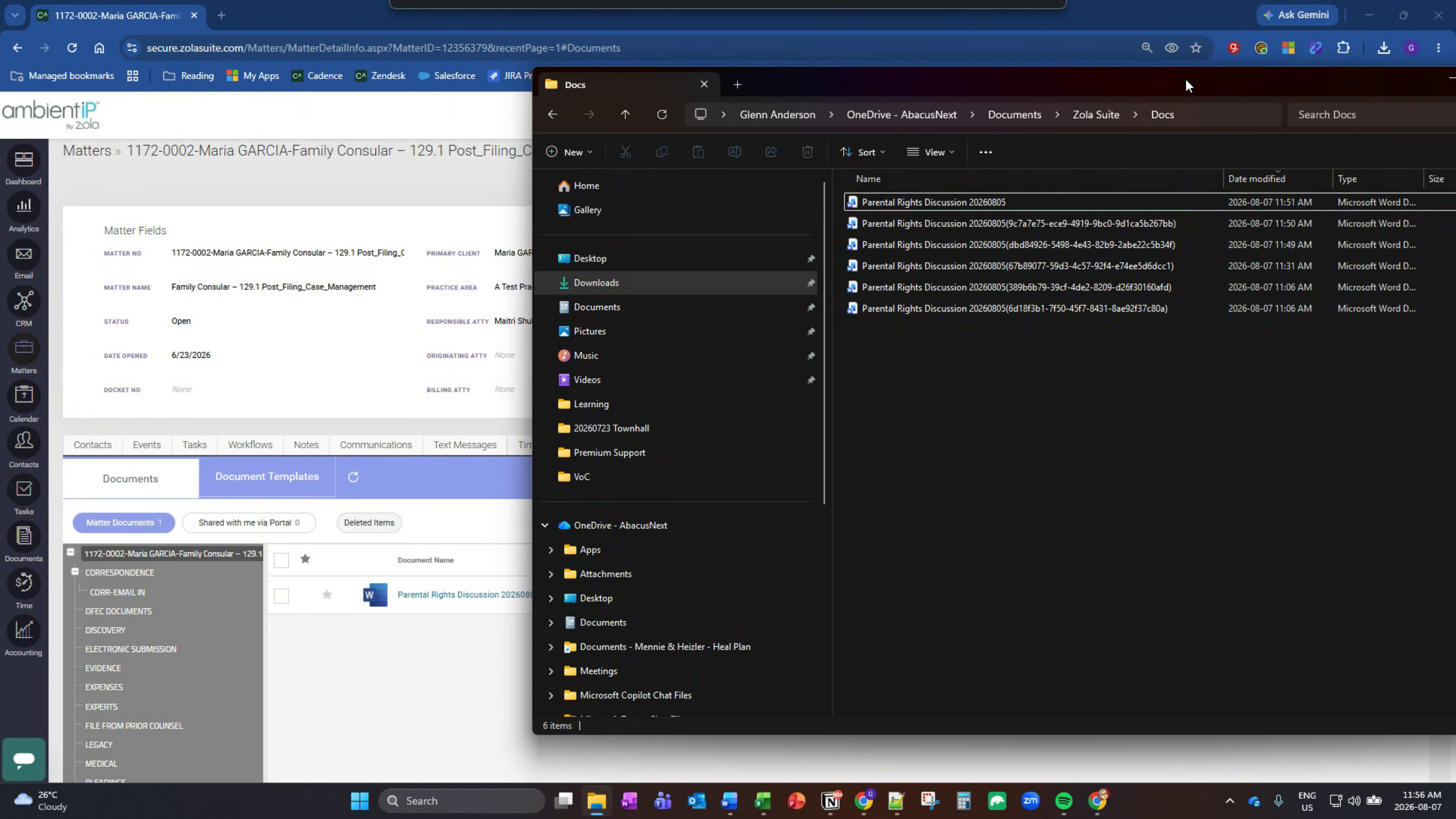
Next, grab the file by left-clicking over the filename and holding it, pull the file down on top of the Z-Drive area for the matter, and release the mouse button. Z drive will immediately ask if you want to upload this file. To initiate this, click Upload. Z-Drive will automatically detect this as a duplicate file, even though it is the most recent version we are manually uploading. Make sure "save as a new version" is selected, and click complete upload. You will now see that there is a new version number for the file - if that does not immediately appear, simply click the refresh button. Once you see the new version, you can click on the file and either open with Z-Drive, open with Z-Editor, or download, and you will once again be working with the most recent version of the file. If you experience any trouble with this process, or you require assistance from support in recovering any potential files that may not have properly uploaded the most recent version to Z-Drive, please navigate to the bottom left corner of CARET Legal, click on this icon, and open the support dialog. Put in your relevant information and one of our support agents will be happy to reach out to you to assist.
Thank you for choosing CARET Legal.