1. Introduction to User Management
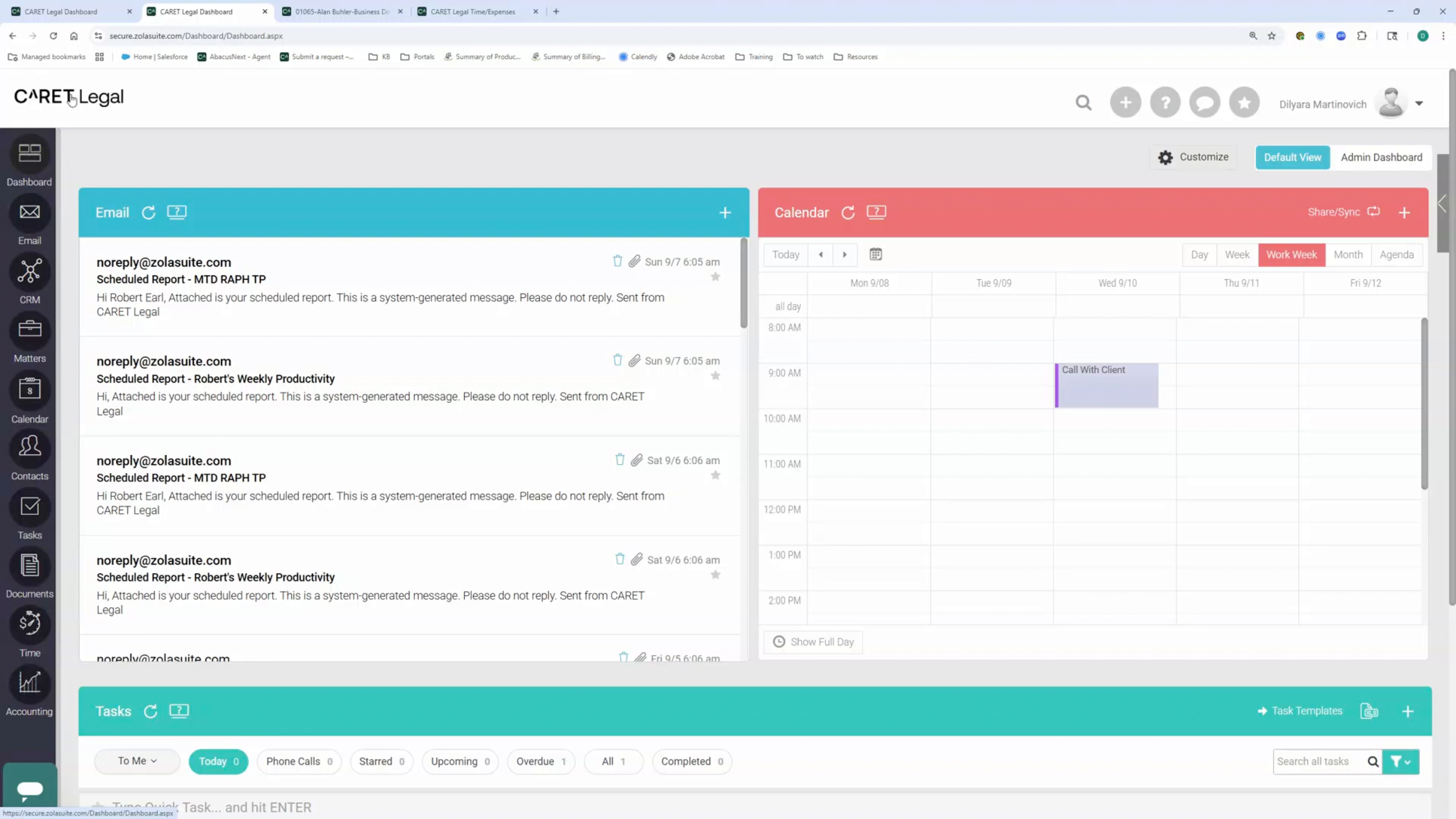
In this video, we focus on an important administrative task at CARET Legal: reviewing and managing your user list. Law firms often experience staffing changes, and it's essential to ensure that only active, employed users have access to the platform. This helps maintain security, accurate billing, and clean reporting. We recommend reviewing your user list at least annually. especially at the end of the year, to confirm that all active users are still needed. If someone has left the firm, they should be properly deactivated following a few key steps. Let's take a look at how you can review your firm users and deactivate a user.
2. Accessing User Settings
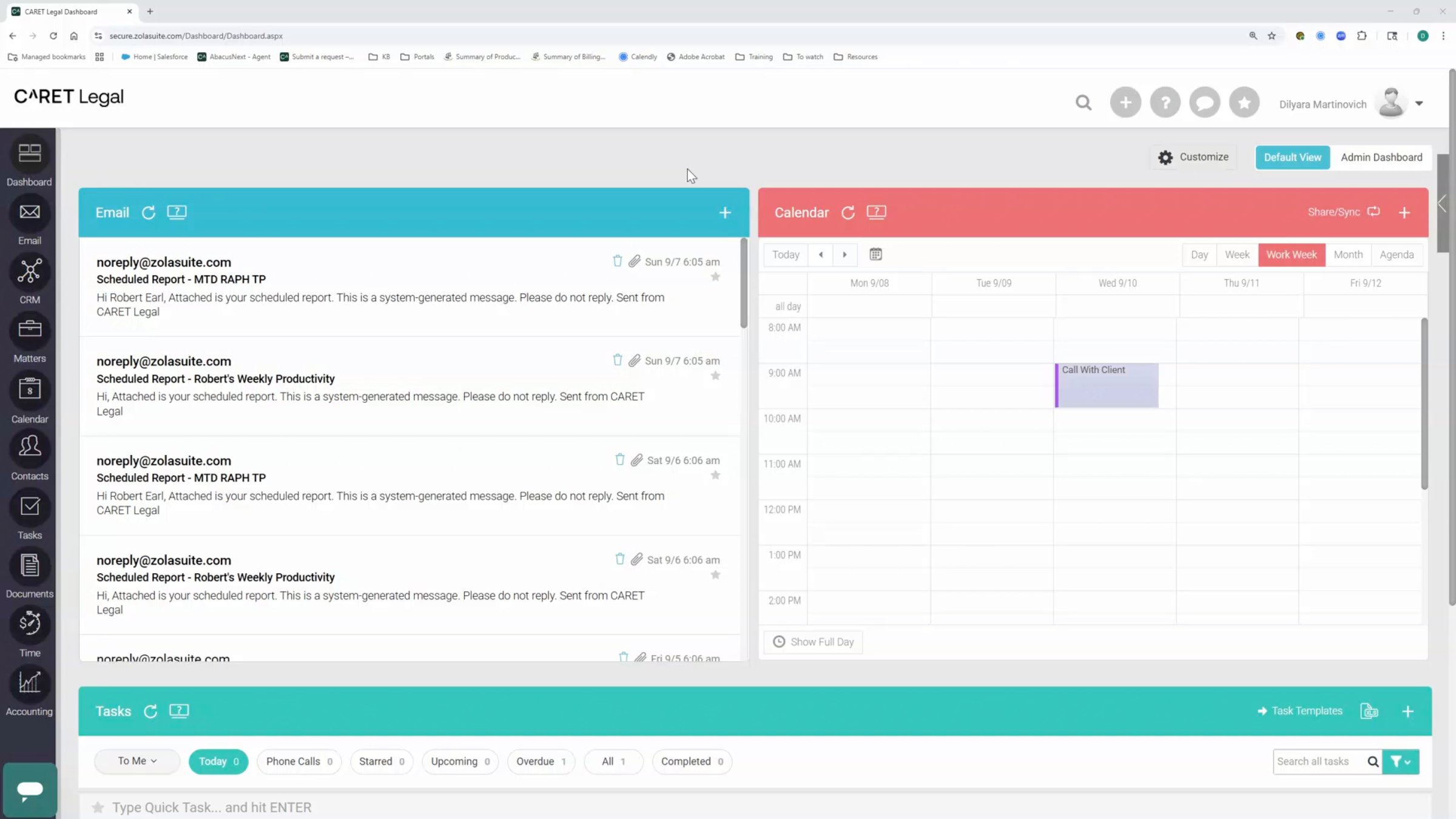
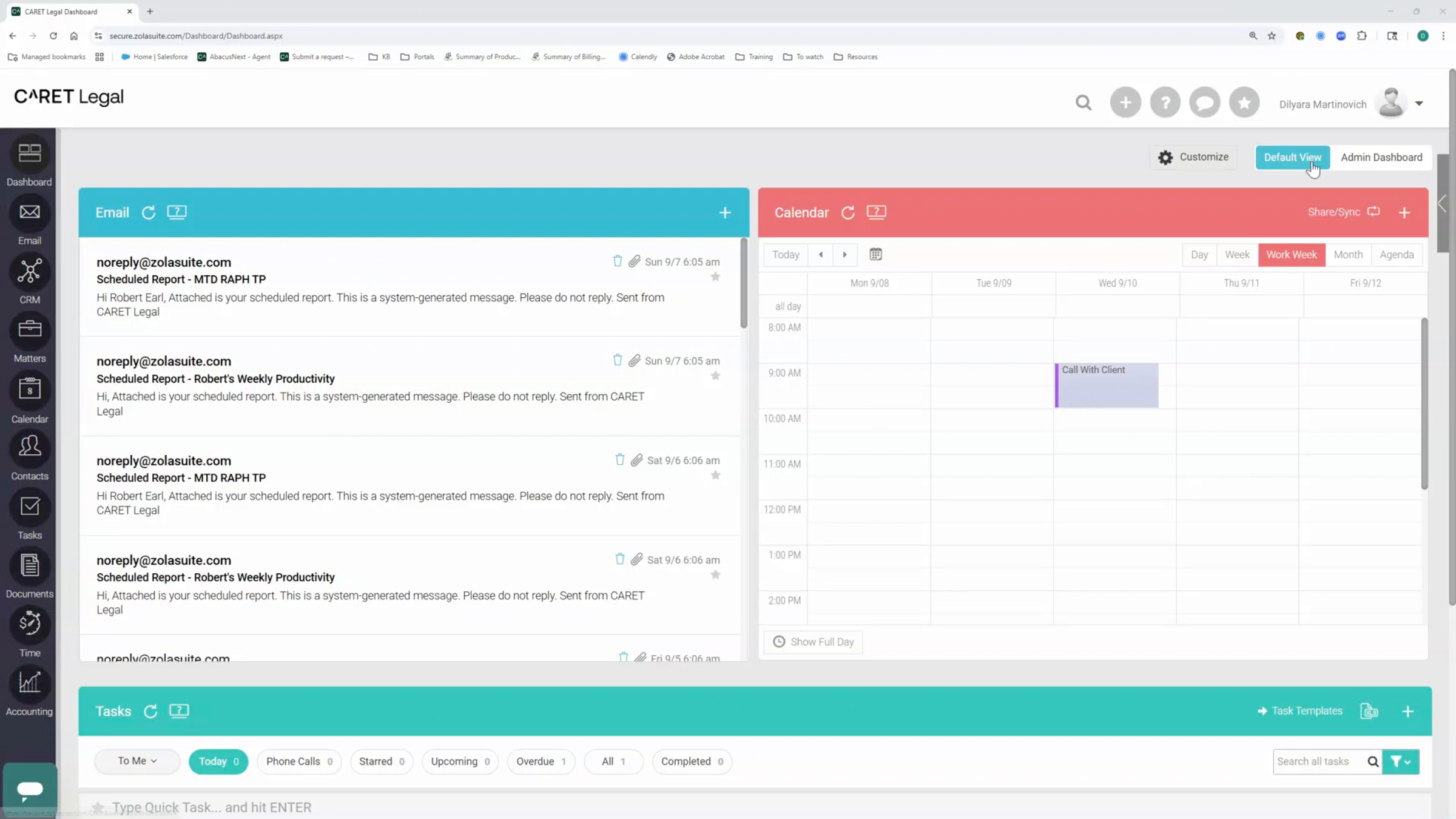
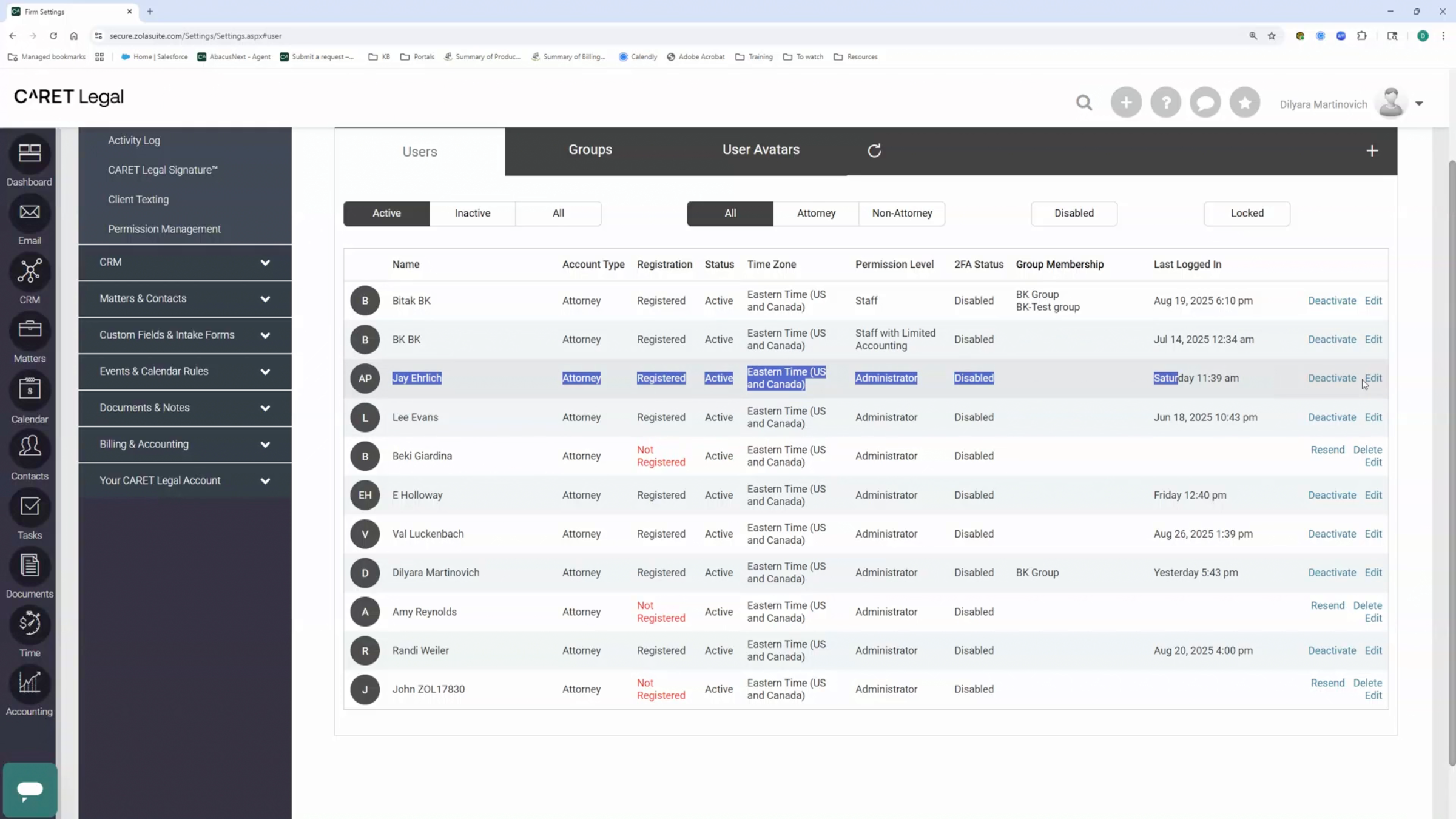
Navigate to the firm settings from the drop-down menu next to your avatar. Select firm options and then users and groups. Stay on the users tab. You will find a list of users marked as active or inactive.
3. Reviewing Active Users
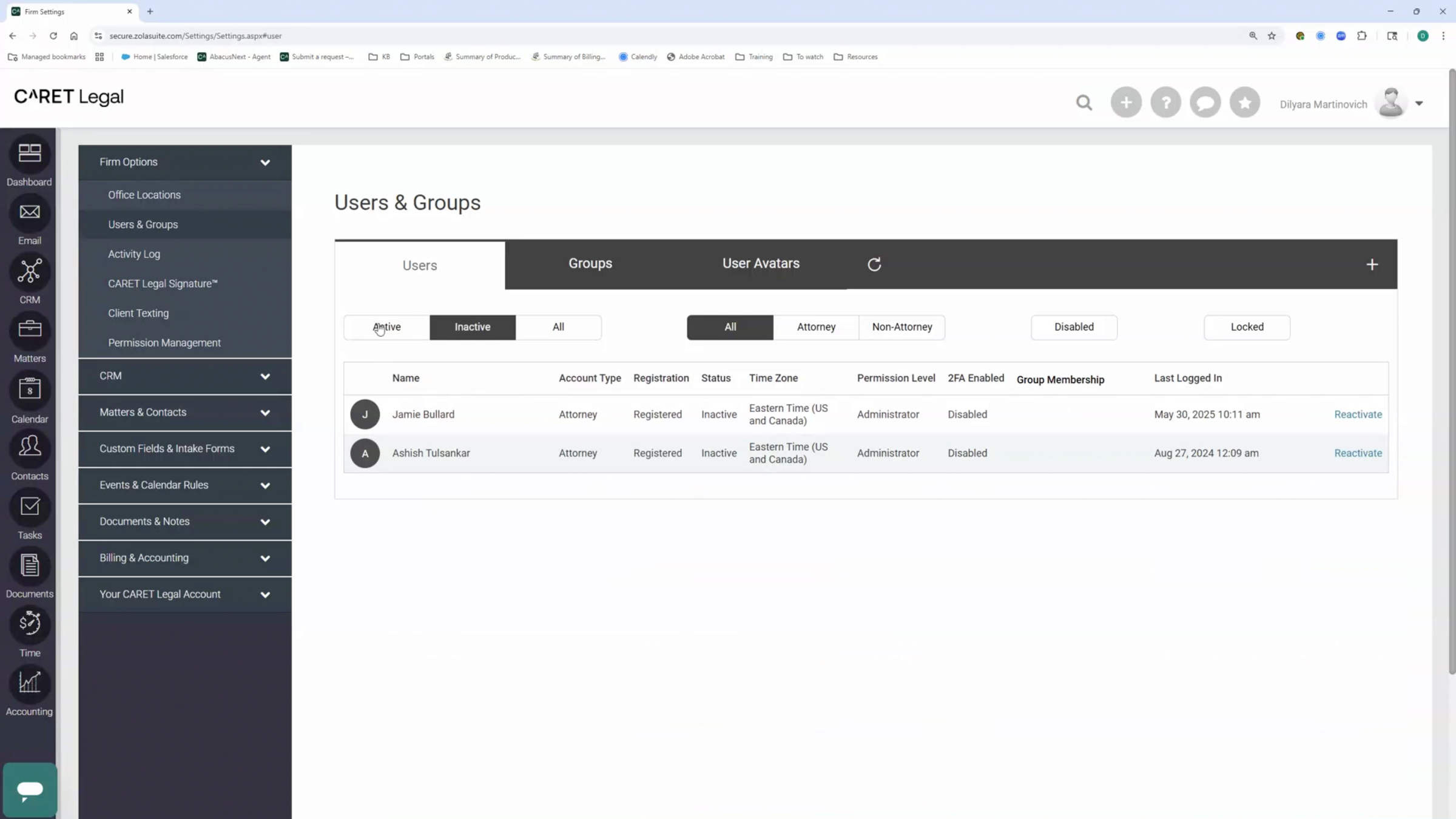
And all active users would have access to the current legal account. Review the list and locate the user you wish to deactivate. Select Deactivate in the right-hand column.
4. Effects of Deactivating Users
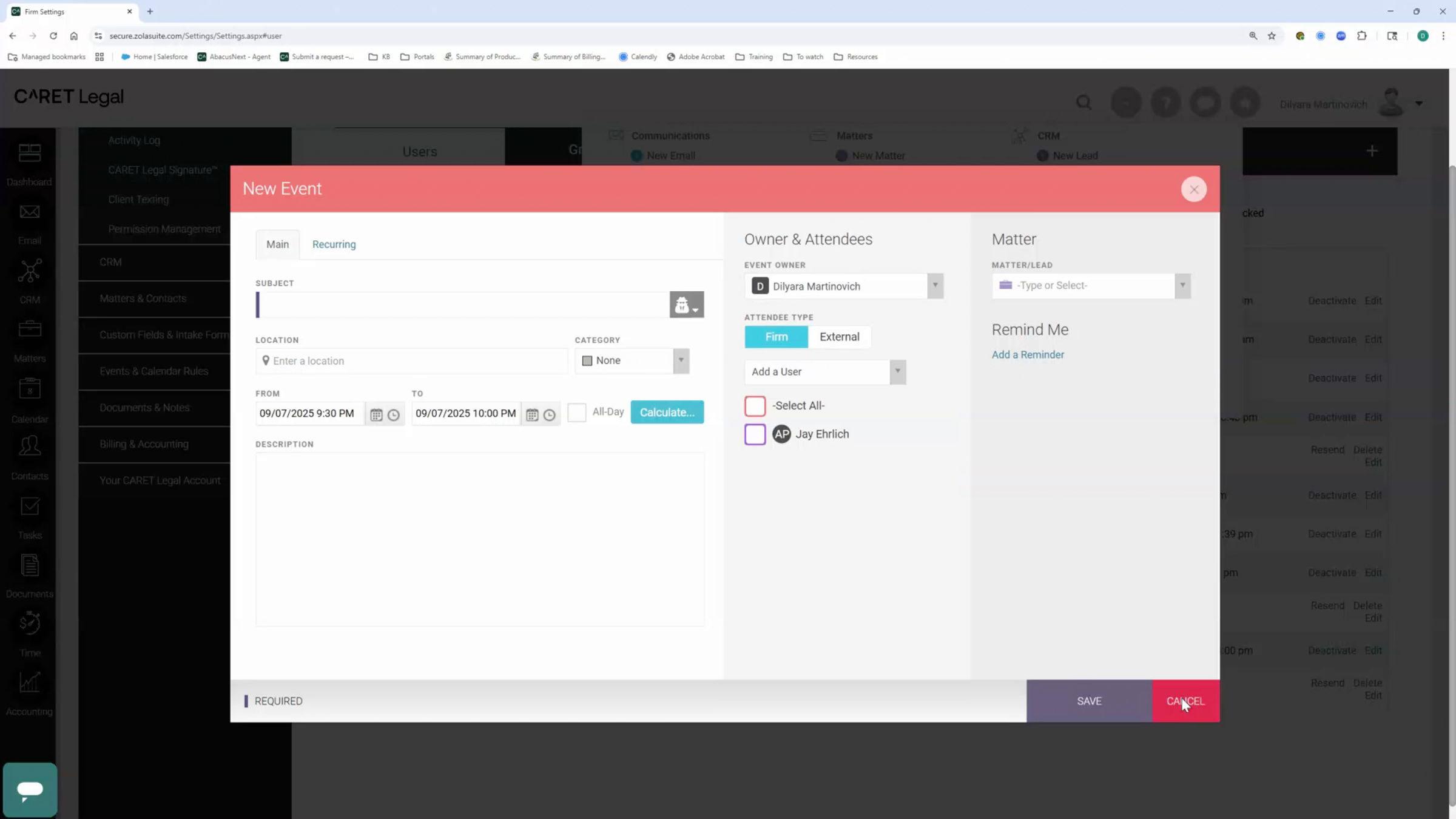
Deactivated users will no longer have access to the platform, and their names will be removed from the active users list, such as drop-down menus. So, for example, once I activate Jay Ehrlich in this case, if I go to create a time entry, they won't be available in this dropdown. Or if I were to go to create a calendar event and assign an event owner, they will no longer be here once deactivated. But
5. Preparing for User Deactivation
Before deactivating a user, there are a few steps we recommend following to ensure a smooth transition.
6. Reassigning Open Matters
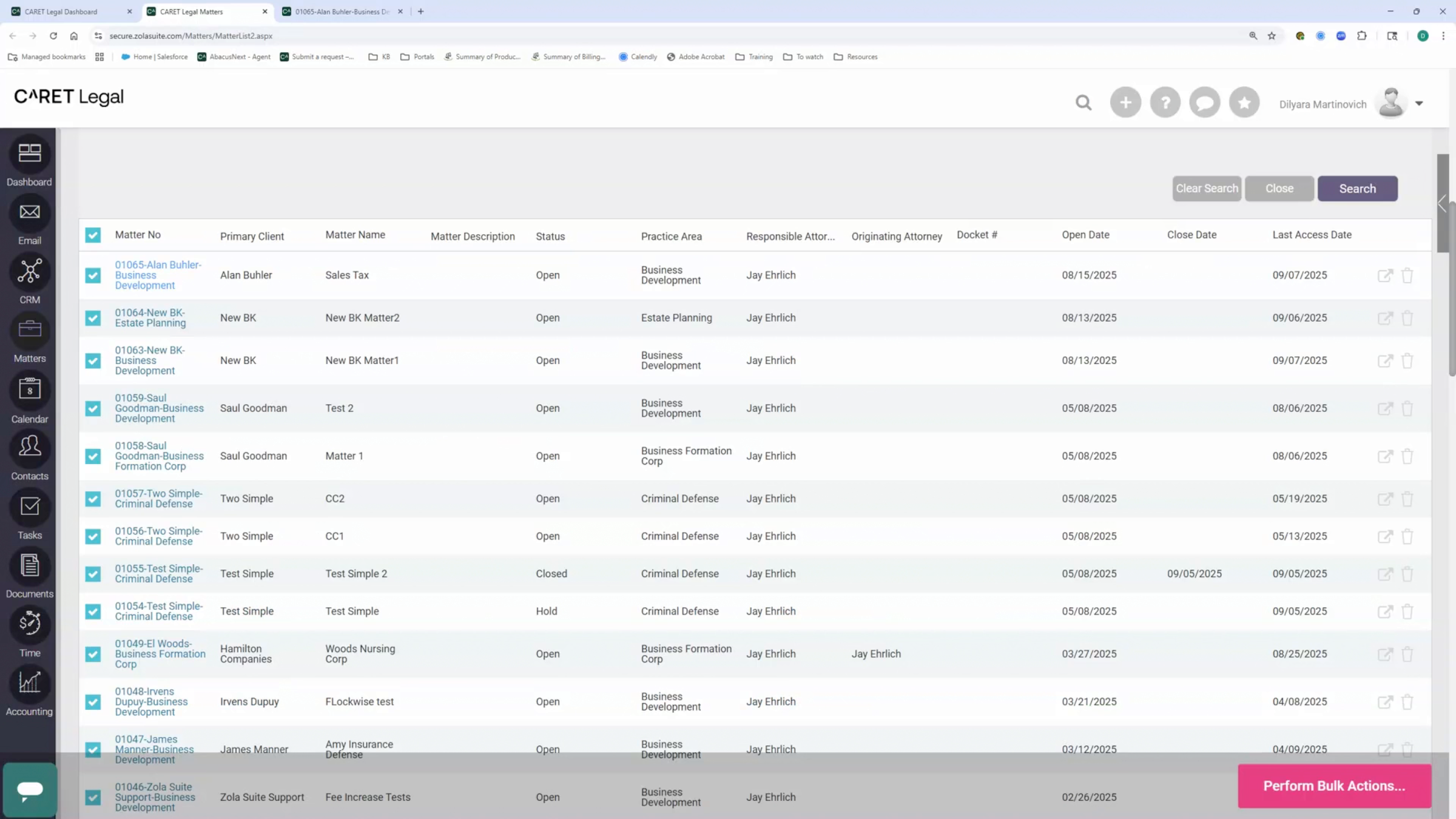
First, reassign any open matters. So if we go to the matters list, we should find all matters that are still open and that are assigned to the user that we wish to activate. So we can use the filters here. And let's say the J-Ehrlich is a responsible attorney on some matters. And we want to search for those. Here we'll get the list where the jailer is assigned as a responsible attorney, and then we'll start selecting the matters that need to be assigned to a particular attorney, or we can just select them all and use the bulk action and change the assignment in bulk. In the responsible attorney field, drop-down field, select another user and click update. You can also do it on selected matters only. So if we need to change the attorney assignment on a matter-by-matter basis, we can do so as well from the matter detail page. Find the responsible attorney field here, select another attorney, and click save to change the assignment. To save the assignment change.
7. Reassigning Tasks and Events
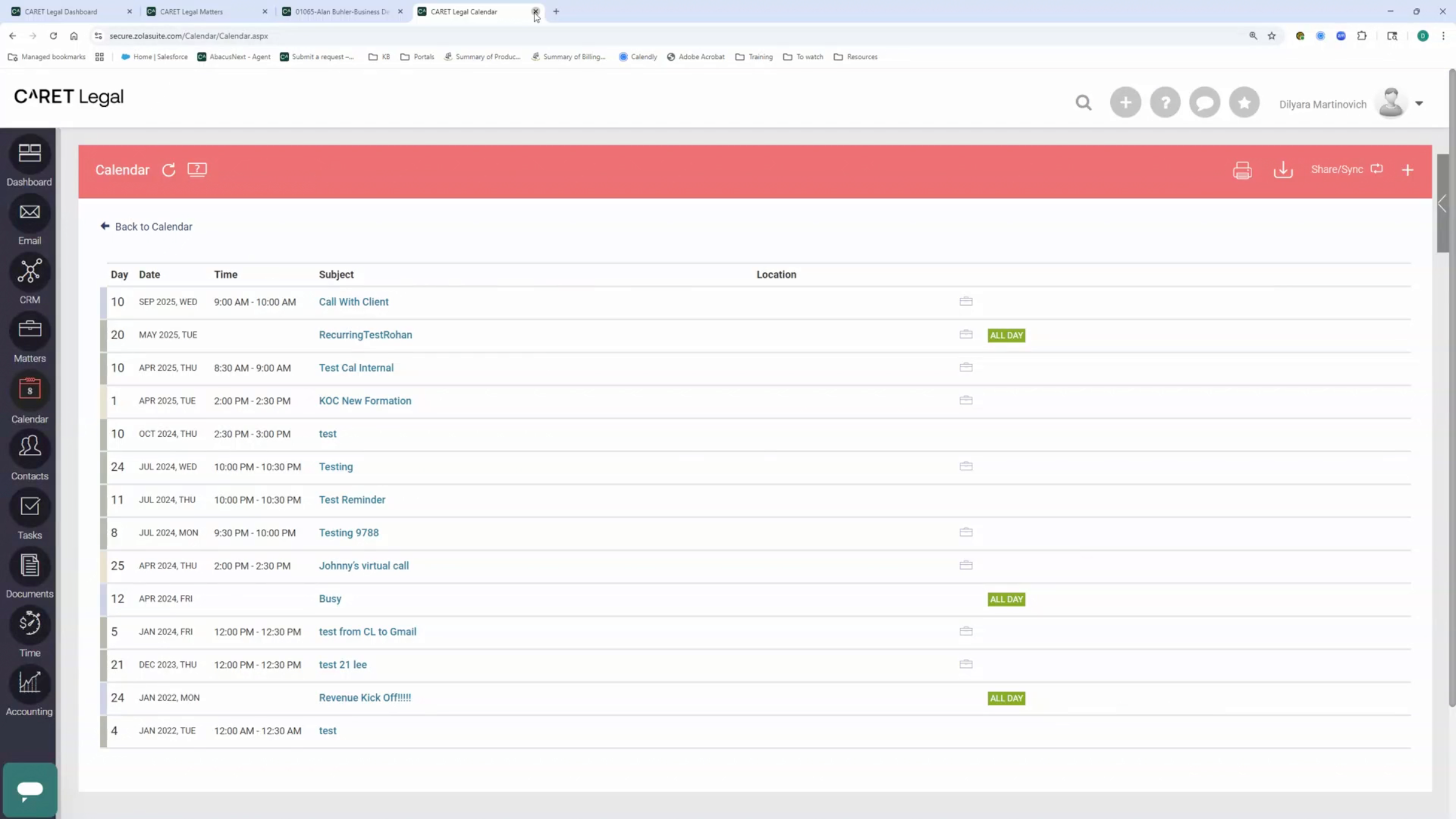
The next step would be to reassess any tasks and events. So, if we go to look at our task list, the same thing that we did with the matters, we can search just for those tasks that are assigned to Jay. And then we can filter down by either status or by the due date range. So maybe we just want to look at some of the due dates that are due from, let's say, the beginning of the year till we go forward, let's say, till the end of the year 2030. Depends on how far in the future you usually assign tasks to your users. I'm just going to use this date range as an example and then click search. And now we are seeing a few tasks that are still in progress, some of them have not been started, and a few that have been completed. And from there, I'm going to click on the edit pencil for each of the tasks and change the assignment. I'm going to remove that and then assign it to another user, for example. And you will do that for each task that needs to be reassigned. Now for events. We're going to do the same thing. Opening the calendar in the full page will give us the option to search for events, and I can do the same. I can go and search by event owner by the due date, and because with events, once the user is deactivated, those events where the user is assigned as event owner will no longer be visible in the calendar view. So we want to make sure to assign all those events as well. So I put one event up here, and I can make changes to the event owner.
8. Reviewing Unbilled Activity
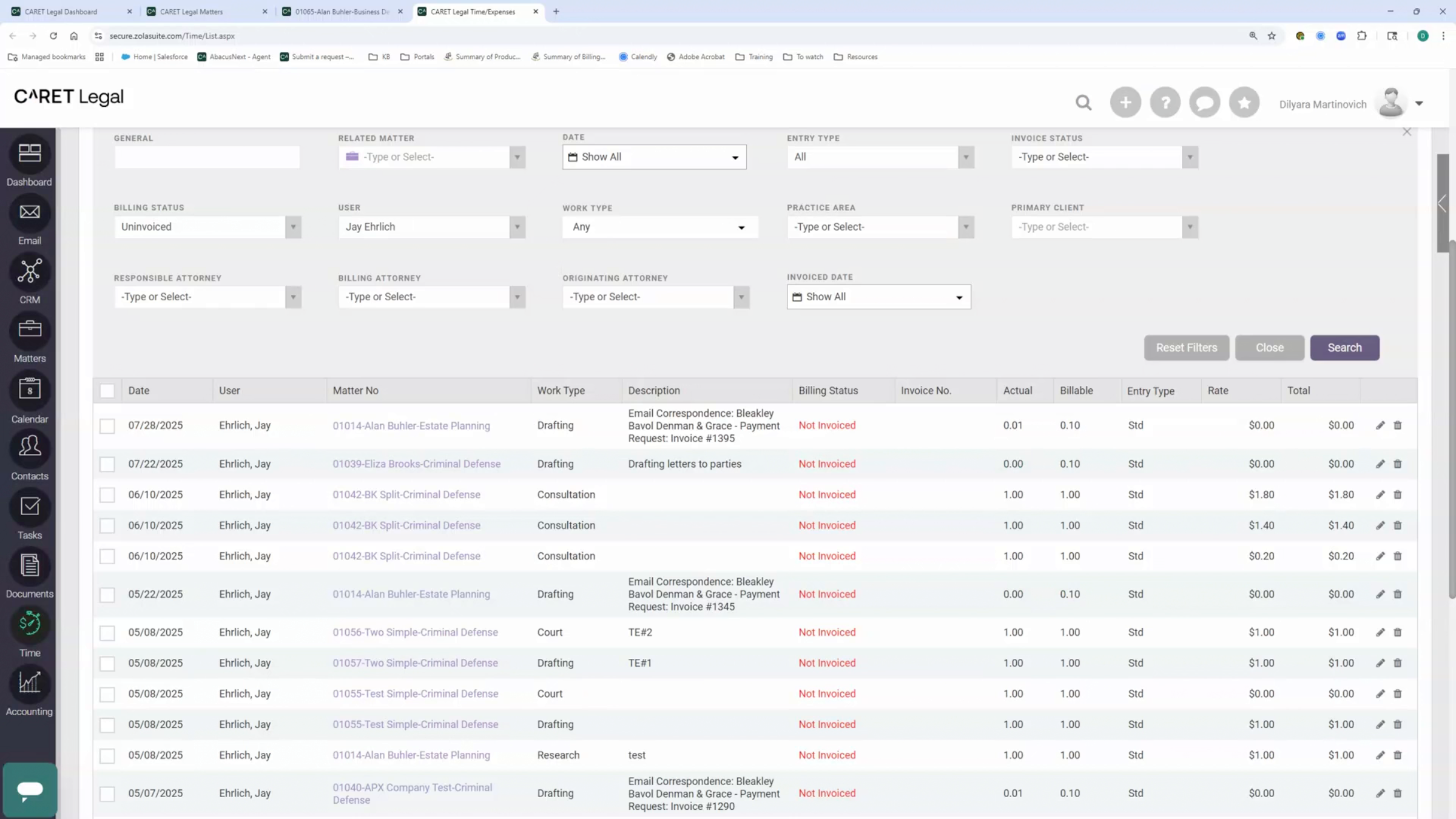
The next step that should be followed is reviewing any unbilled activity, such as time entries, fees, flat fees, and expenses. So I'm going to open up the time section here. And like what we did with other items, we can search for time entries, flat fees, or expenses that are assigned to that specific user. So I can only search for uninvoiced items and for those time entries where Jay is a timekeeper. But you can make changes to each time entry here. But also, I just want to let you know that unbuilt activity from a deactivated user can still be invoiced. So only make changes if those are needed to those unbuilt activities, such as time entries, flat fees, and expenses. If you need to make a change, just open the time entry or other unbilled activity, locate that, click the pencil button on the right side, select another timekeeper, and click update to save your changes.
9. Managing Matterscapes
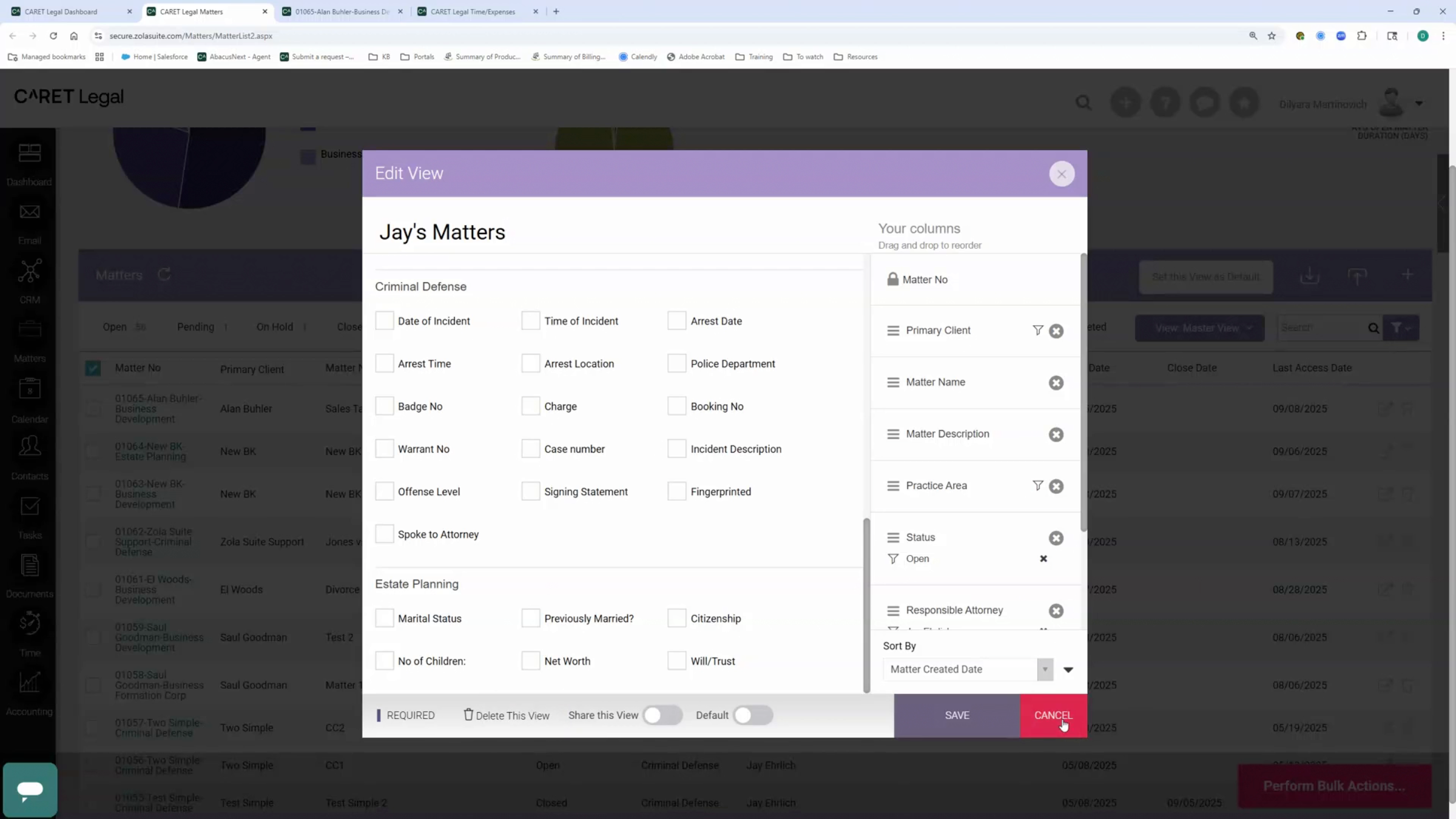
And the last thing that we want to do is review the matterscapes. So I'm going to return to the matters section here, the matters list. And if there are matterscapes that were created by that user that you wish to deactivate. Those matterscapes, if not needed, if they're no longer needed, can only be deleted by that user. So this one I've created, so I see the edit pencil button If there will be any other matterscapes that have been shared with me or by other users, with other users by that person, let's say the J Ehrlich that I'm trying to deactivate, if he created any other matterscapes, I will still see them in the Matterscape's list here if they are shareable, but there will be no edit button. So again, they can only be deleted by that user. So if you, once they come in and open that Matterscape's detail, there will be a delete this view button here.
10. Finalizing User Deactivation
So once you've completed these transition steps, you can now deactivate the user in CARET Legal. And these steps will help preserve the integrity of your data and ensure that no work is lost or left unassigned.
11. Best Practices for User Review
Make it a habit to review your users regularly or at least at the end of each year, and deactivate anyone who has left the firm. This ensures your current legal environment stays clean, secure, and ready for the new year.