This video demonstrates, how to request a retainer payment using CARET Pay.
1. Access Retainer Request Tab
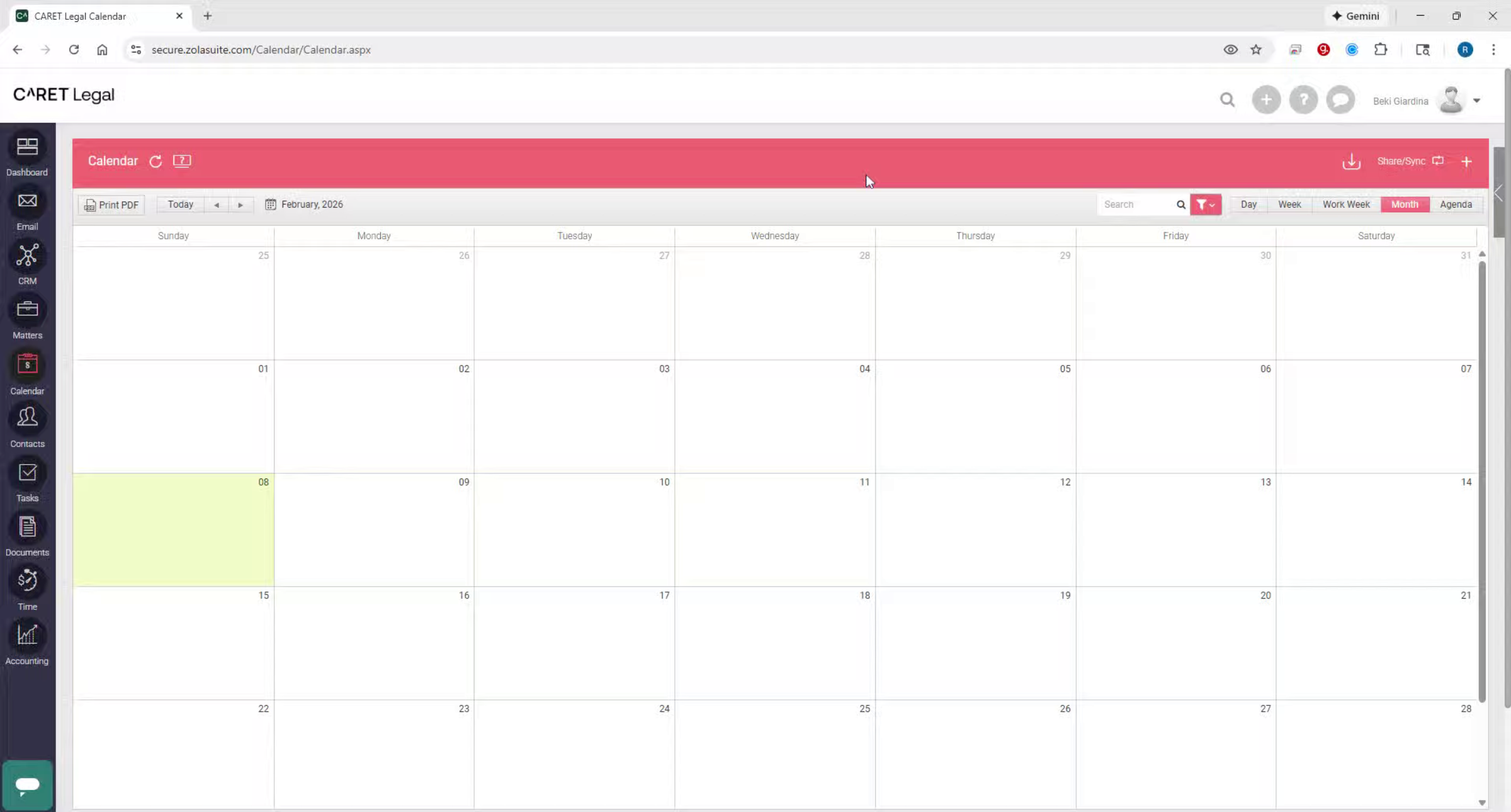
To begin, navigate to the Accounting section of the Navigation pane and select the Retainer Request tab.
2. Create New Retainer Request
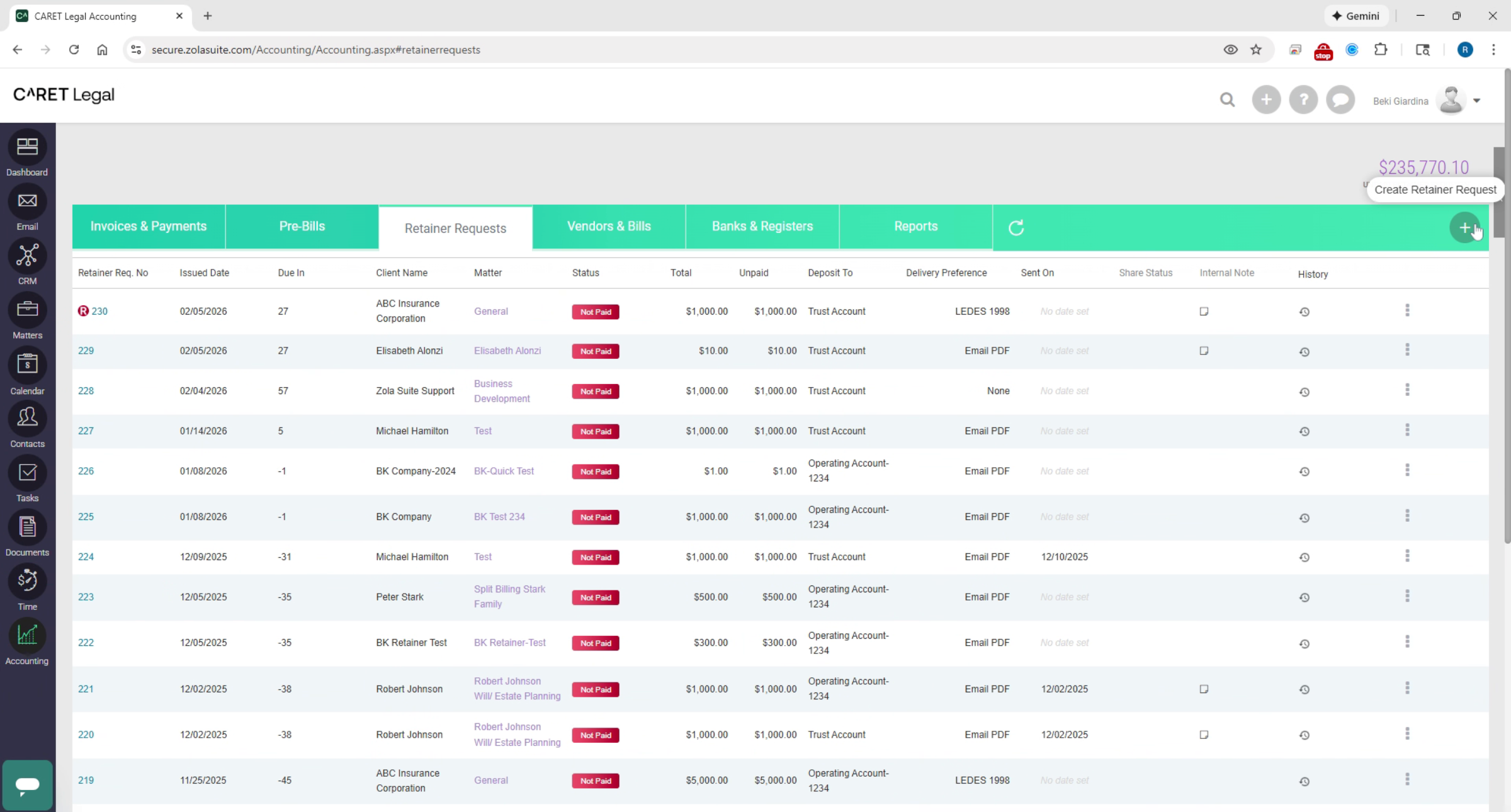
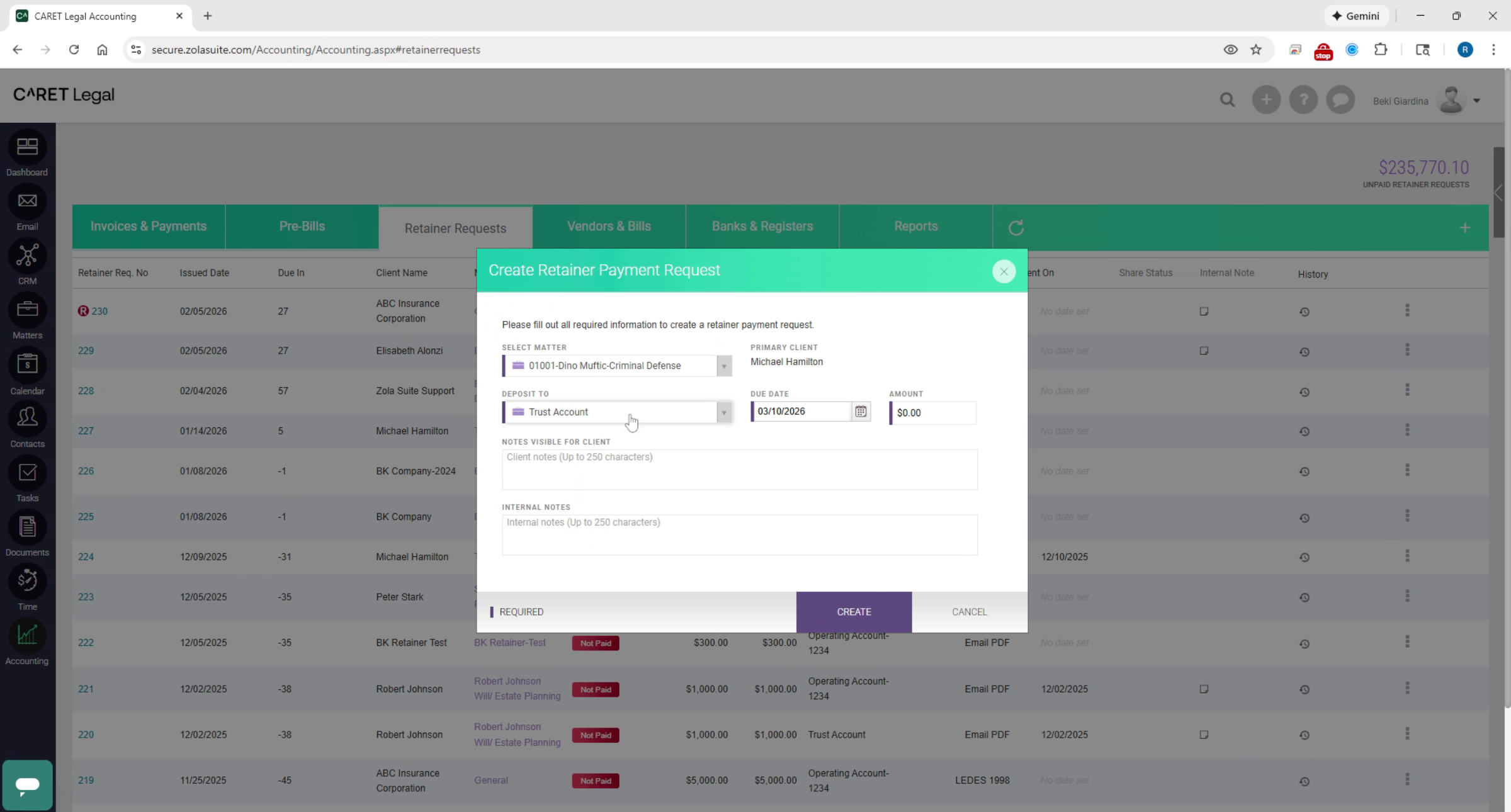
In the top right corner, click the plus icon in the green banner to create a new retainer request. Select the matter to associate with the request and then choose the destination trust account or bank account for the funds.
3. Enter Retainer Details
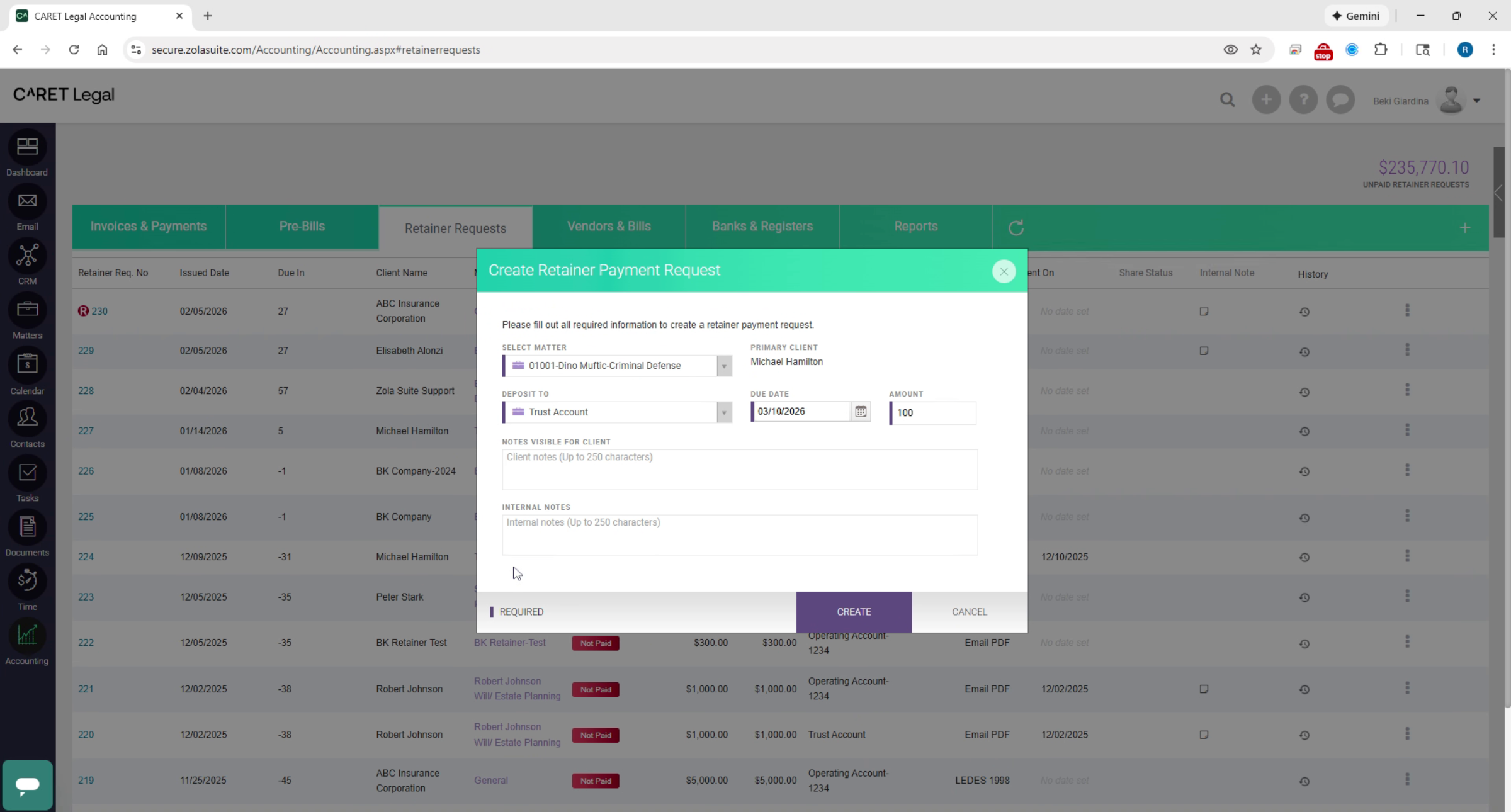
Enter the retainer amount and you may also select a note to the client as well as an internal note which is visible only within the firm.
4. Finalize Retainer Request
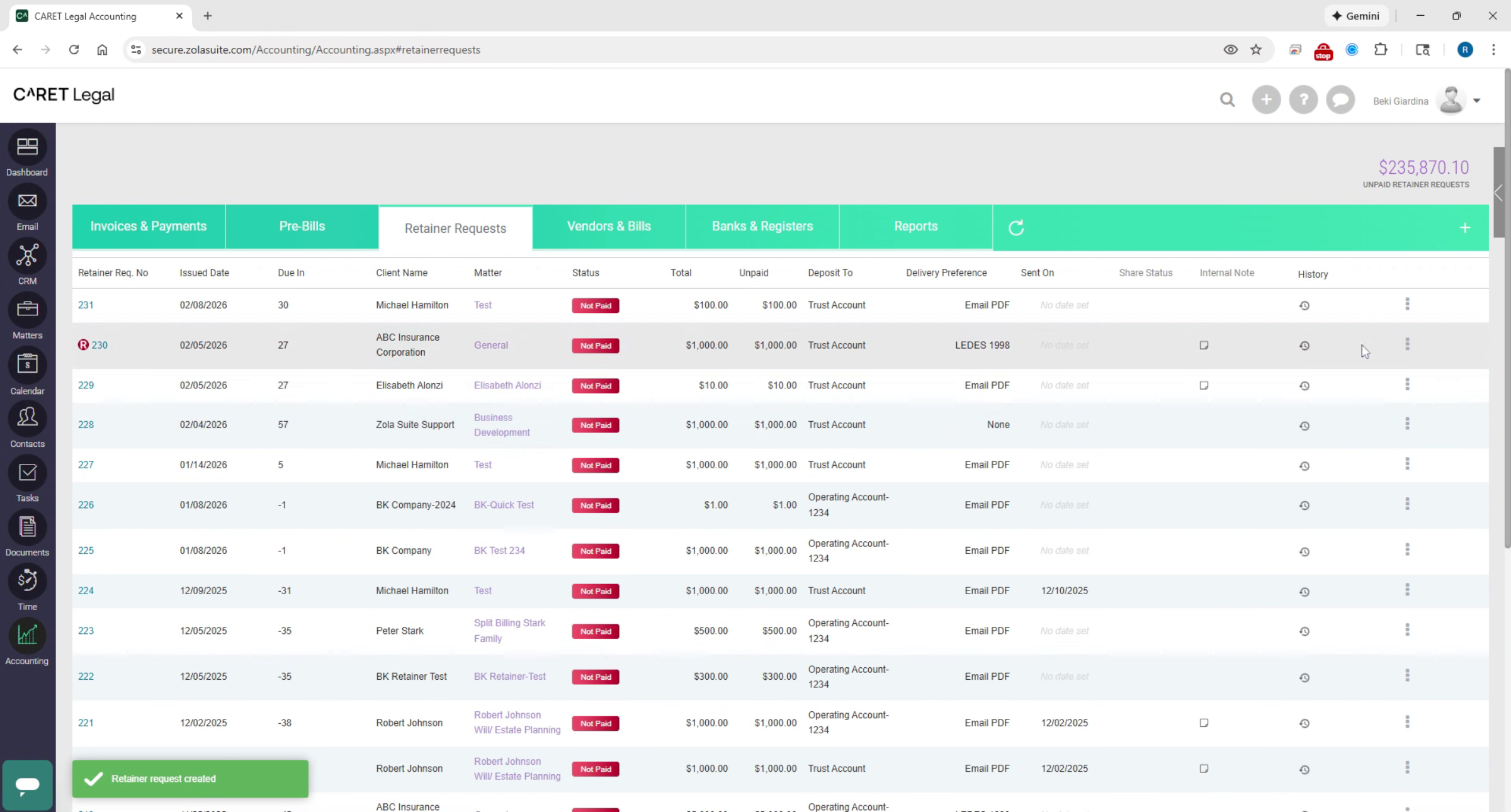
Once complete, create the retainer request. After the request is created, it will appear in the retainer request list.
5. Edit Retainer Request
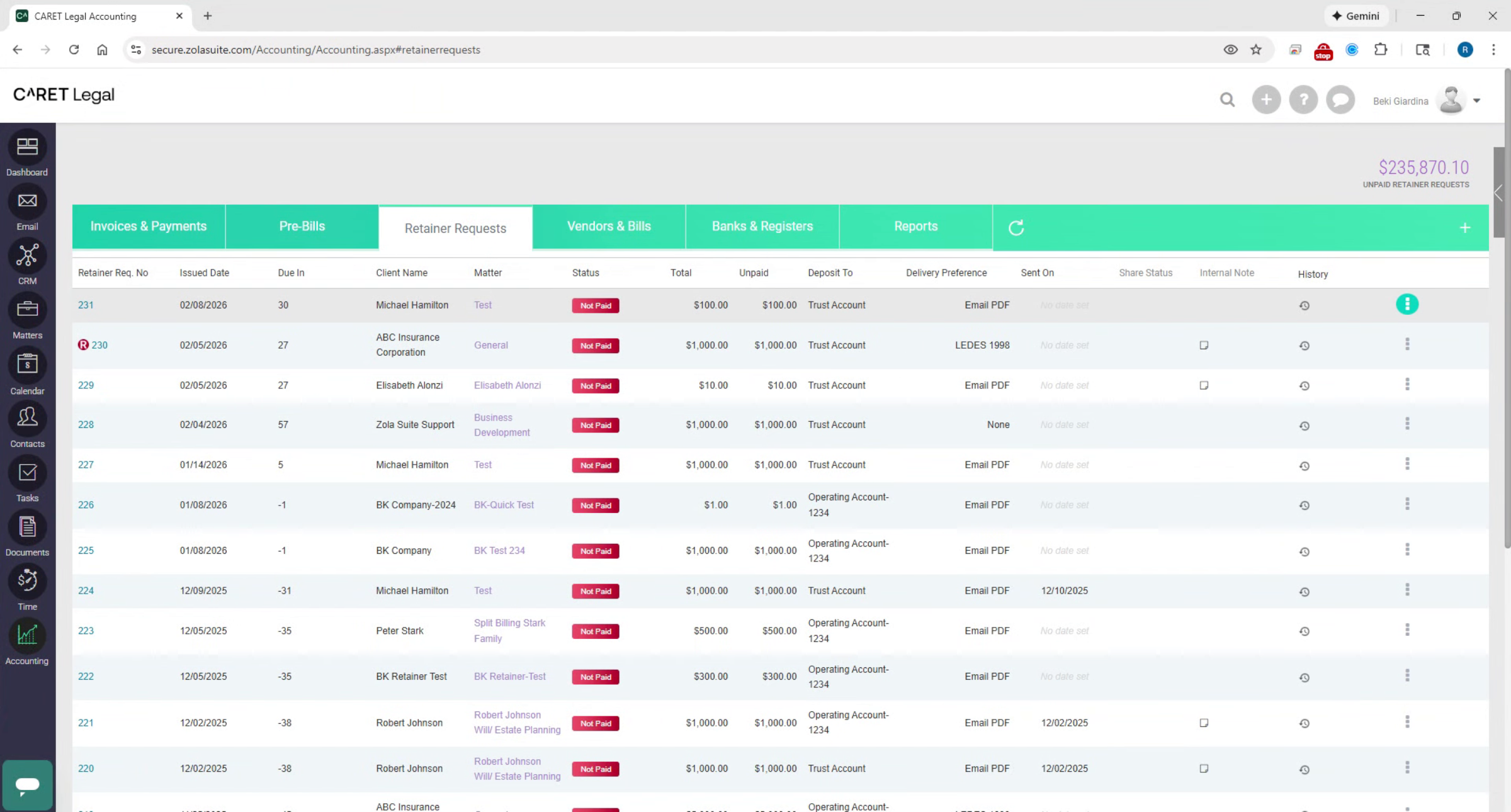
From here, you may edit the request by selecting ellipses icon to the right of the request and choosing edit.
6. Send Retainer Request
From here, you may edit the request by selecting the ellipses icon to the right of the request and choosing edit. To send the retainer request, select the ellipses and choose send with link to deliver the retainer request to the client. A default message, template is provided, which you may customize to fit your firm's needs. The primary client associated with the matter is automatically selected as the recipient, but this can be adjusted if necessary. When ready, click Send? The retainer request is insecurely sent to the client, allowing them to submit payment without the need for an invoice.
This concludes the demonstration of how to request a retainer payment using CARET Pay.