This video reviews, how to email a CARET Pay now link.
1. Accessing Accounting Section
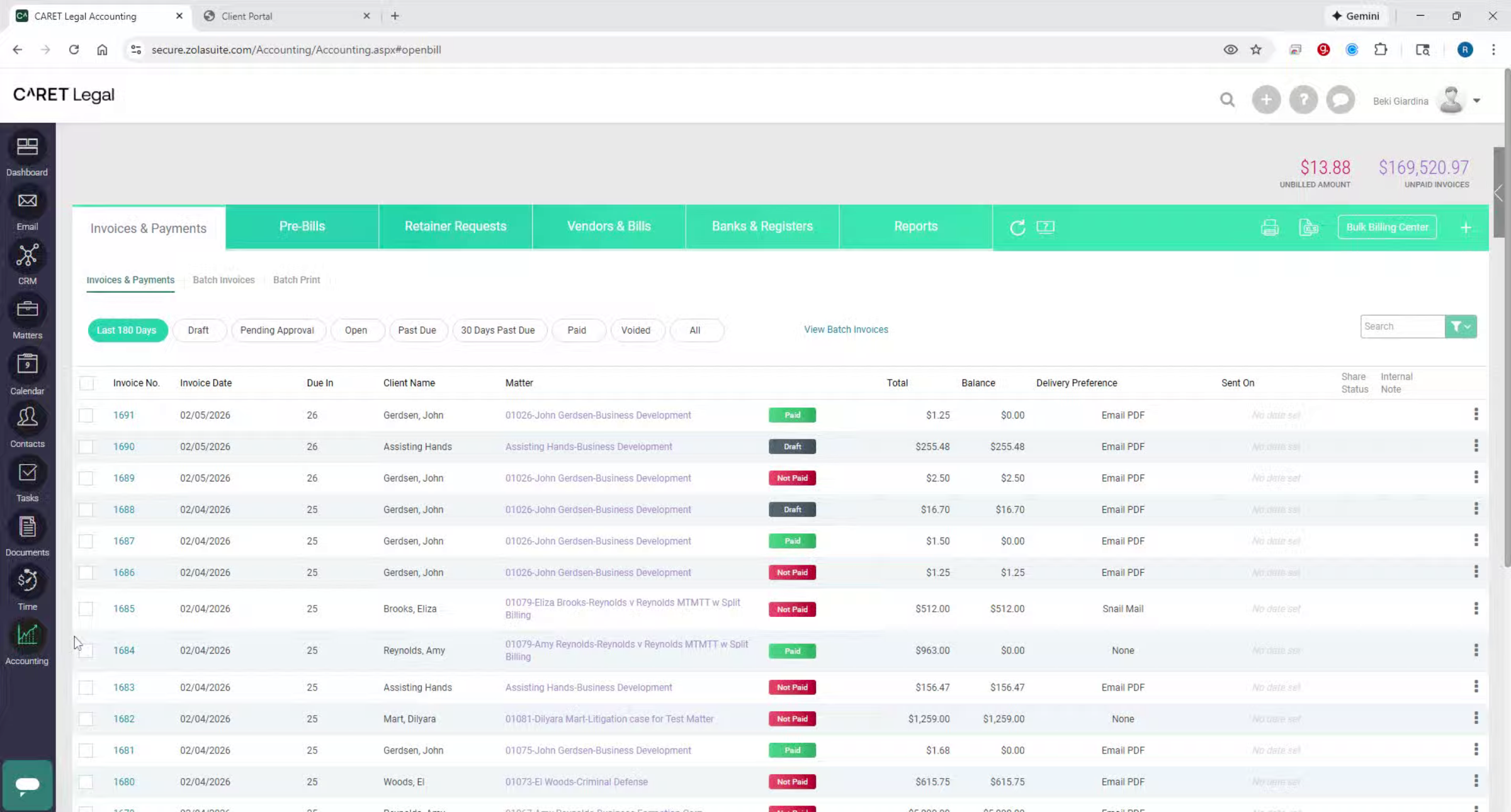
To begin, select the Accounting icon from the left-hand navigation pane.
2. Viewing Invoice Details
This opens the Invoices and Payments page, which displays invoice details such as invoice number, due date, status, total, and outstanding balance.
3. Selecting Invoice To Send
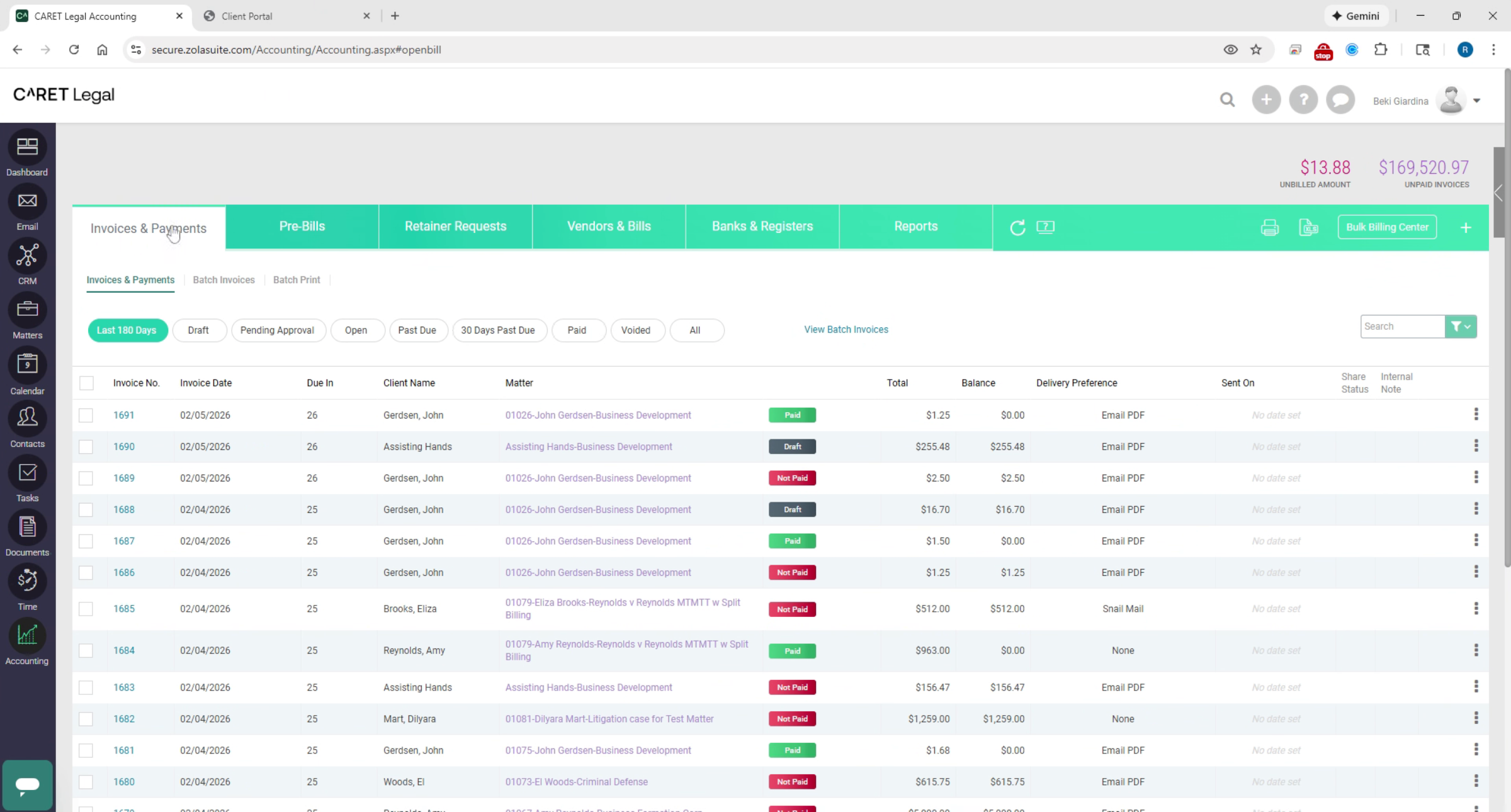
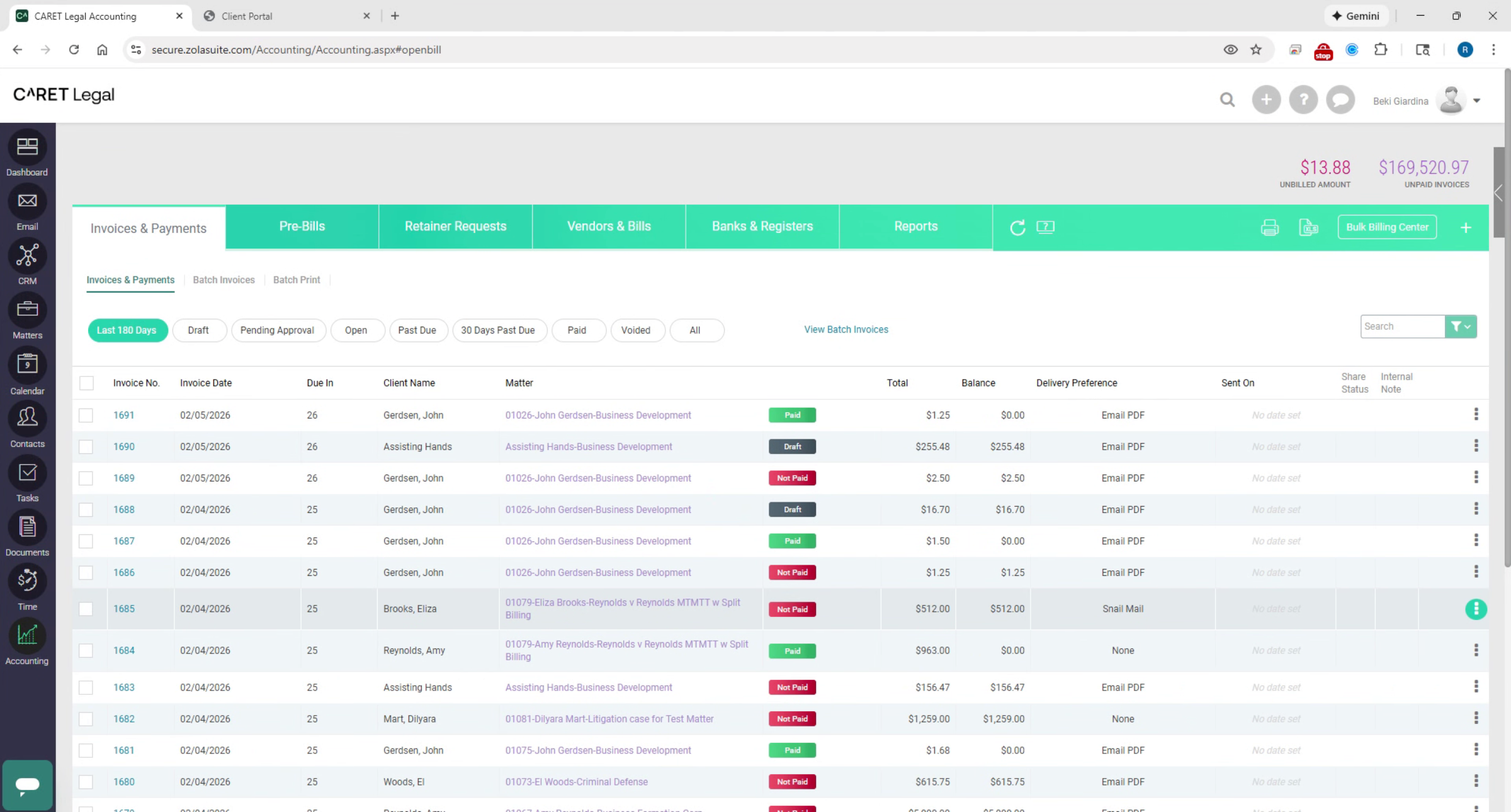
Locate the invoice you wish to send, then click the three-dot ellipses icon to the right of the invoice. From the menu, select Send a payment link.
4. Composing Payment Link Email
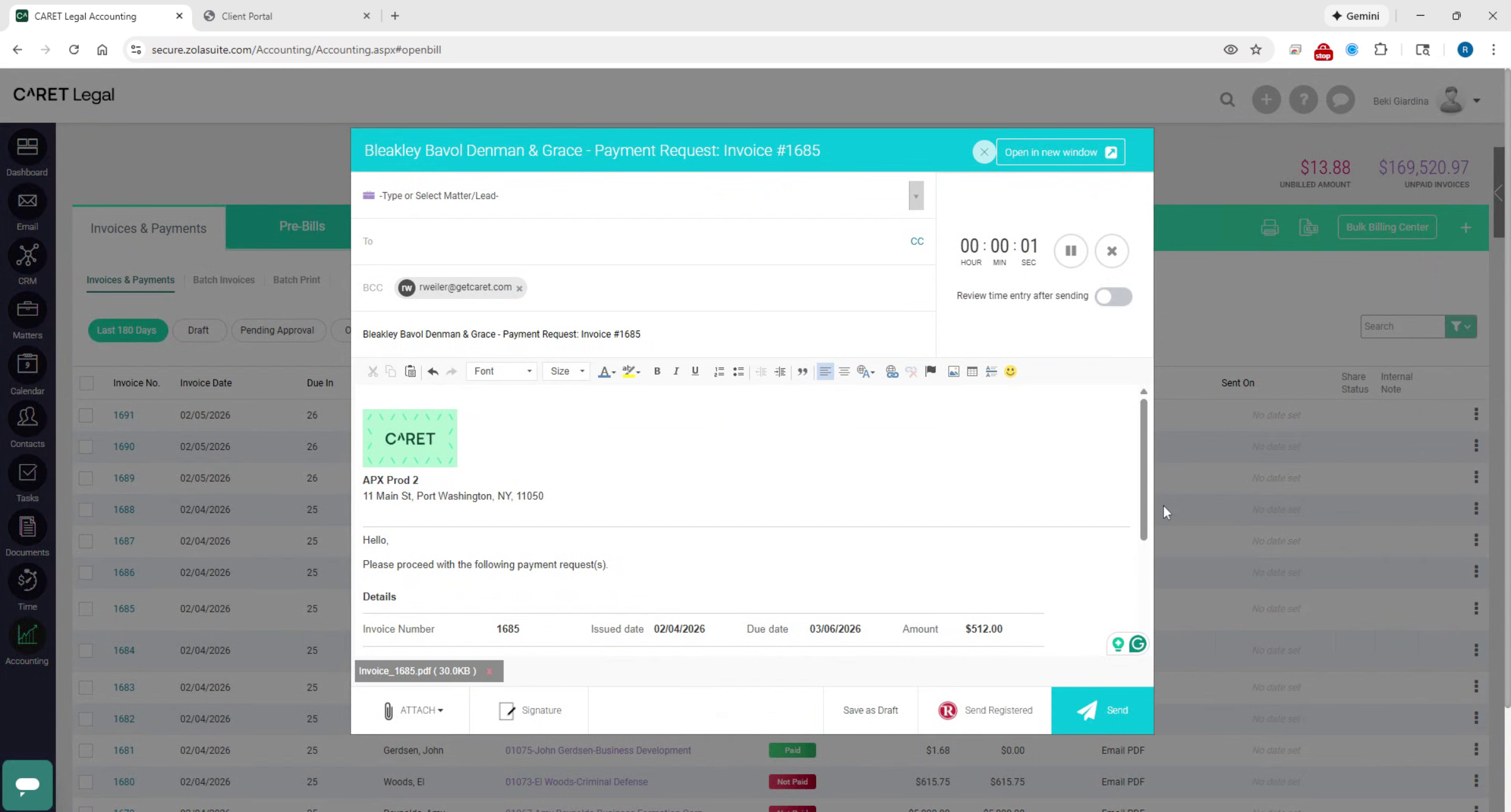
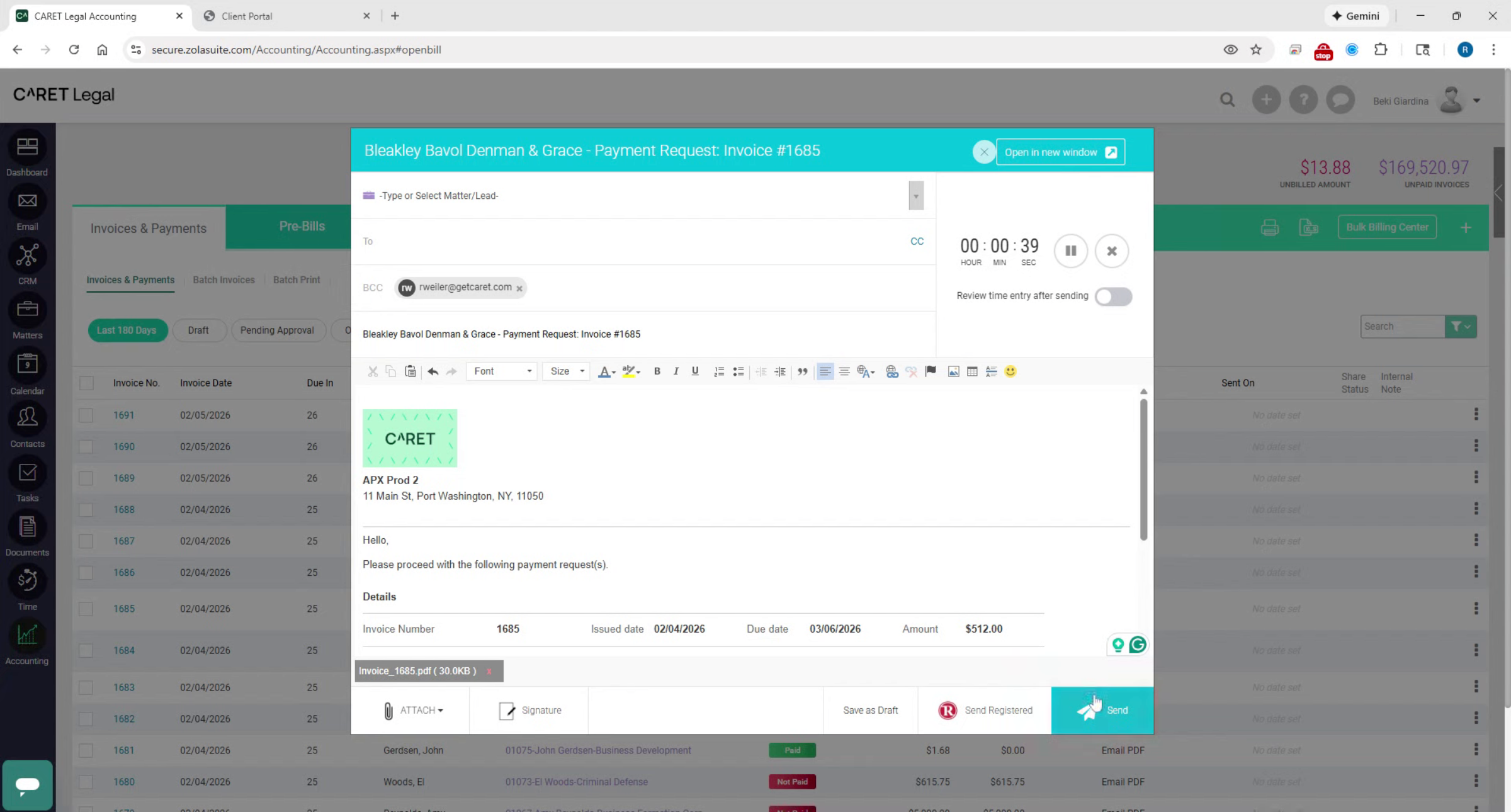
This opens the email composition window. In the email window, the associated matter is automatically populated. Use the to, cc, and bcc fields to enter recipient email addresses. On the right side of the screen, the billing timer will automatically begin and will stop once the email is sent. You may edit the subject line and customize the message as needed. When ready, click Send in the bottom right corner.
5. Client Payment Page Overview
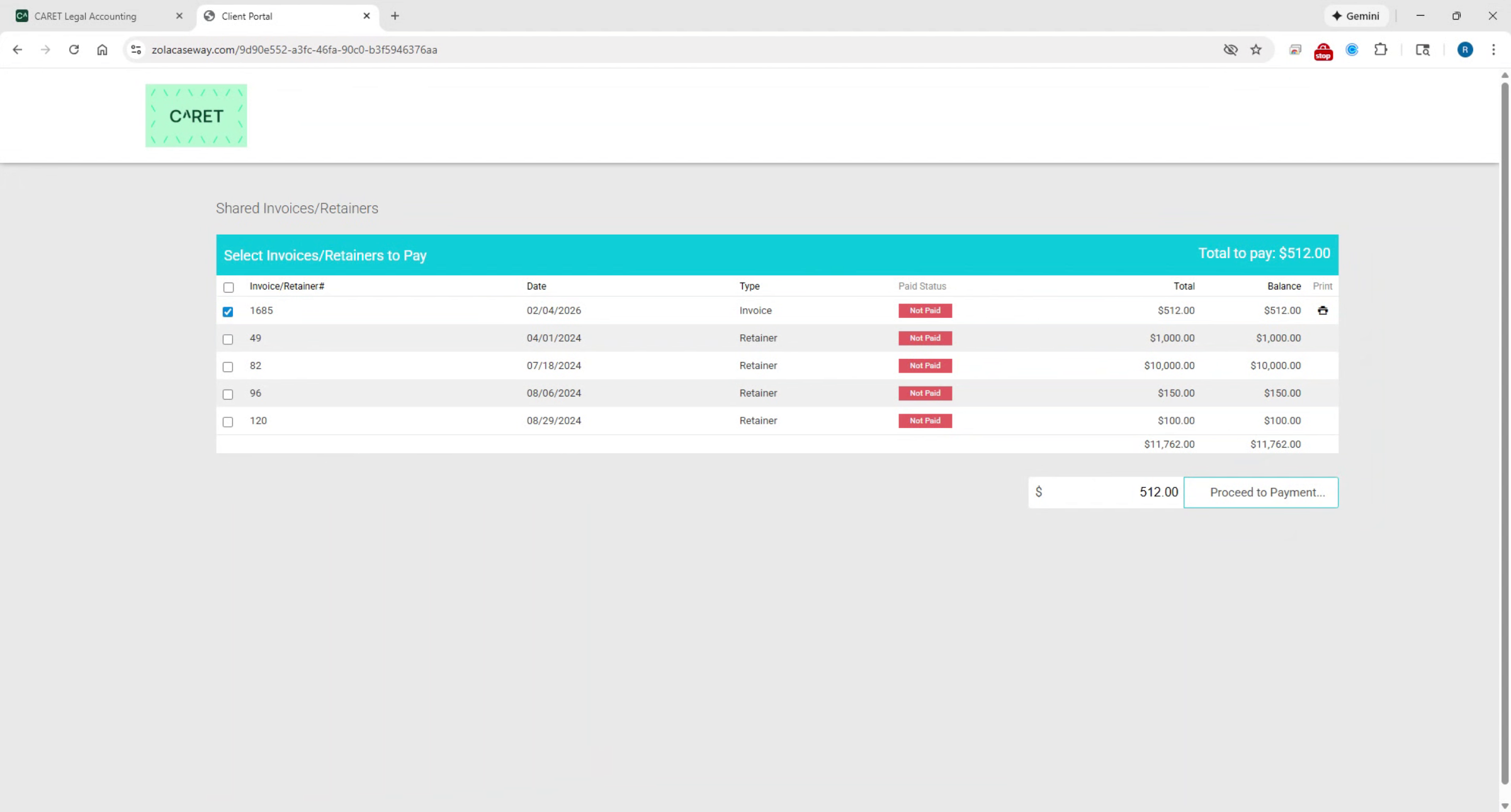
From the client's perspective, selecting the Pay Now link opens a secure payment page branded with the firm's logo. The page displays one or more invoices, including invoice number, date, status, total, and balance. The payment amount defaults to the full outstanding balance but can be adjusted.
6. Completing Payment Process
The payment amount defaults to the full outstanding balance, but can be adjusted. after selecting proceed to payment, the CARET Pay payment, window appears, Clients may choose to pay by credit card or E-Check. ACH select the payment method and submit payment to complete the transaction.
This concludes the overview of how to email a CARET Pay Now link.