This video will showcase how to utilize CARET Legal's newly enhanced conflict. Check feature.
1. Initiate Search
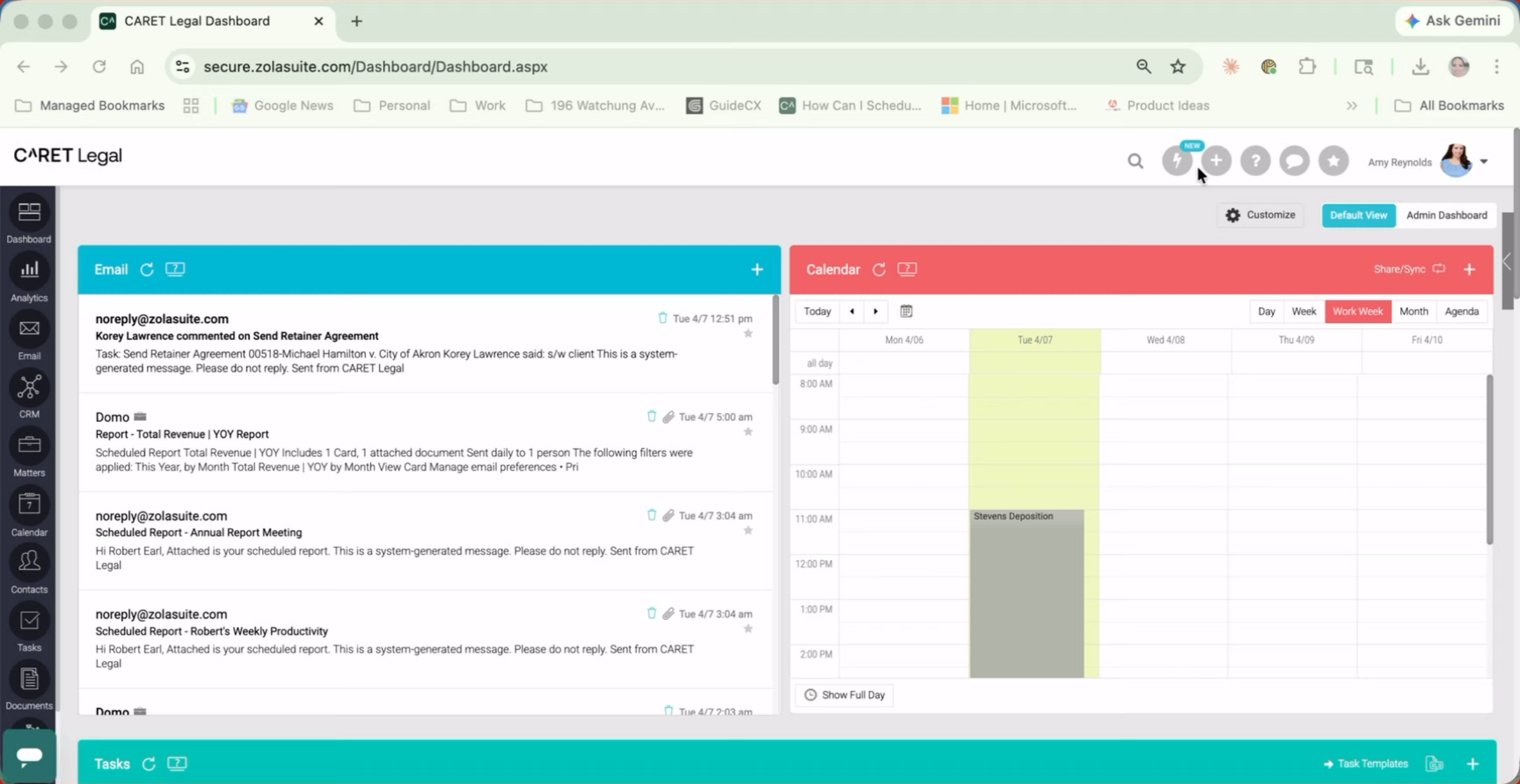
The new conflict search will now open in a separate tab of the same browser. from here, you could search first and last name, You could also use words like not to be a little bit more exclusive in your search results.
2. Explain Charges and Cons
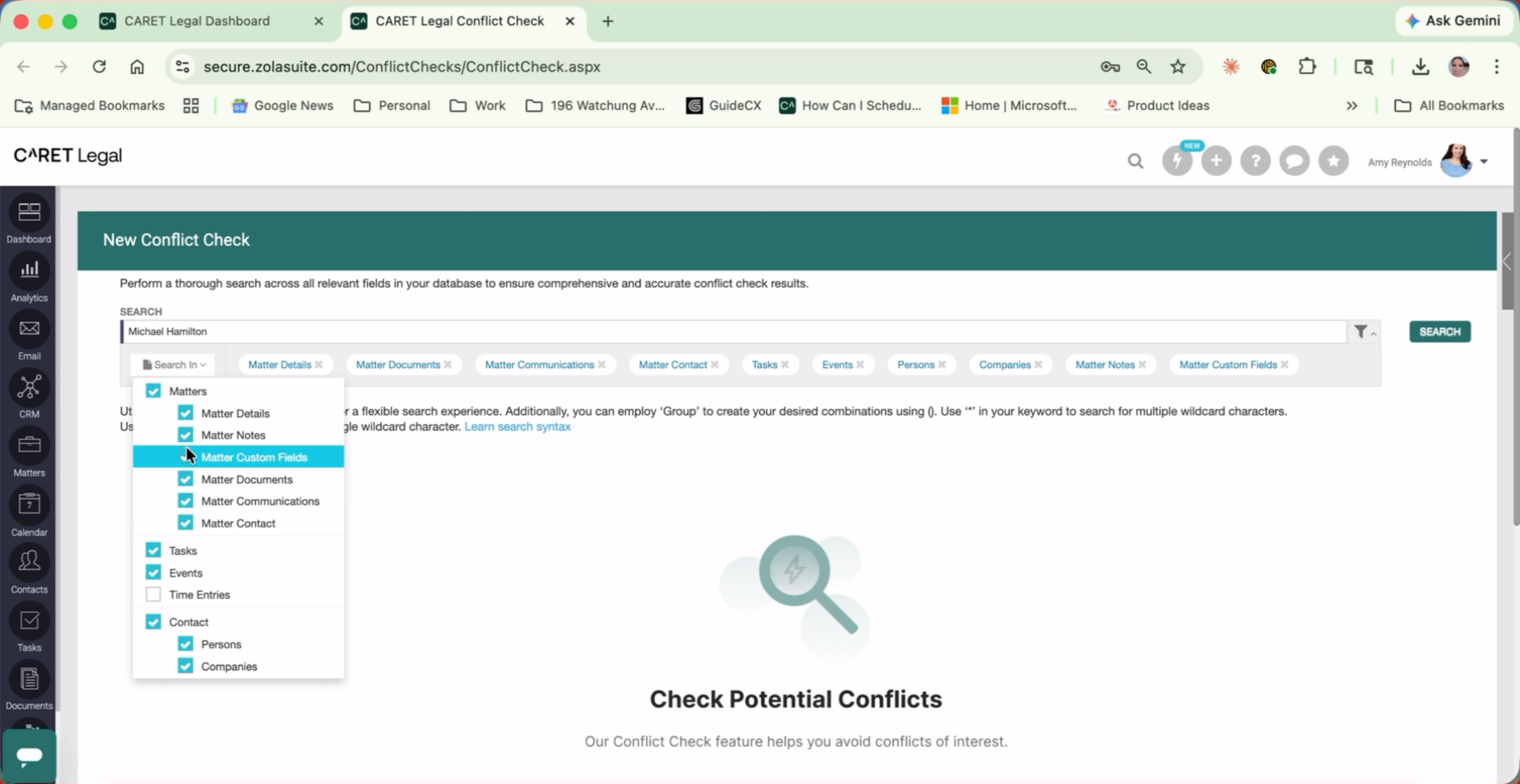
Next, click on the search in button to expand a menu allowing you to check on and off the Record types for which you would like to include or exclude from your conflict. Search.
3. Select Search Button
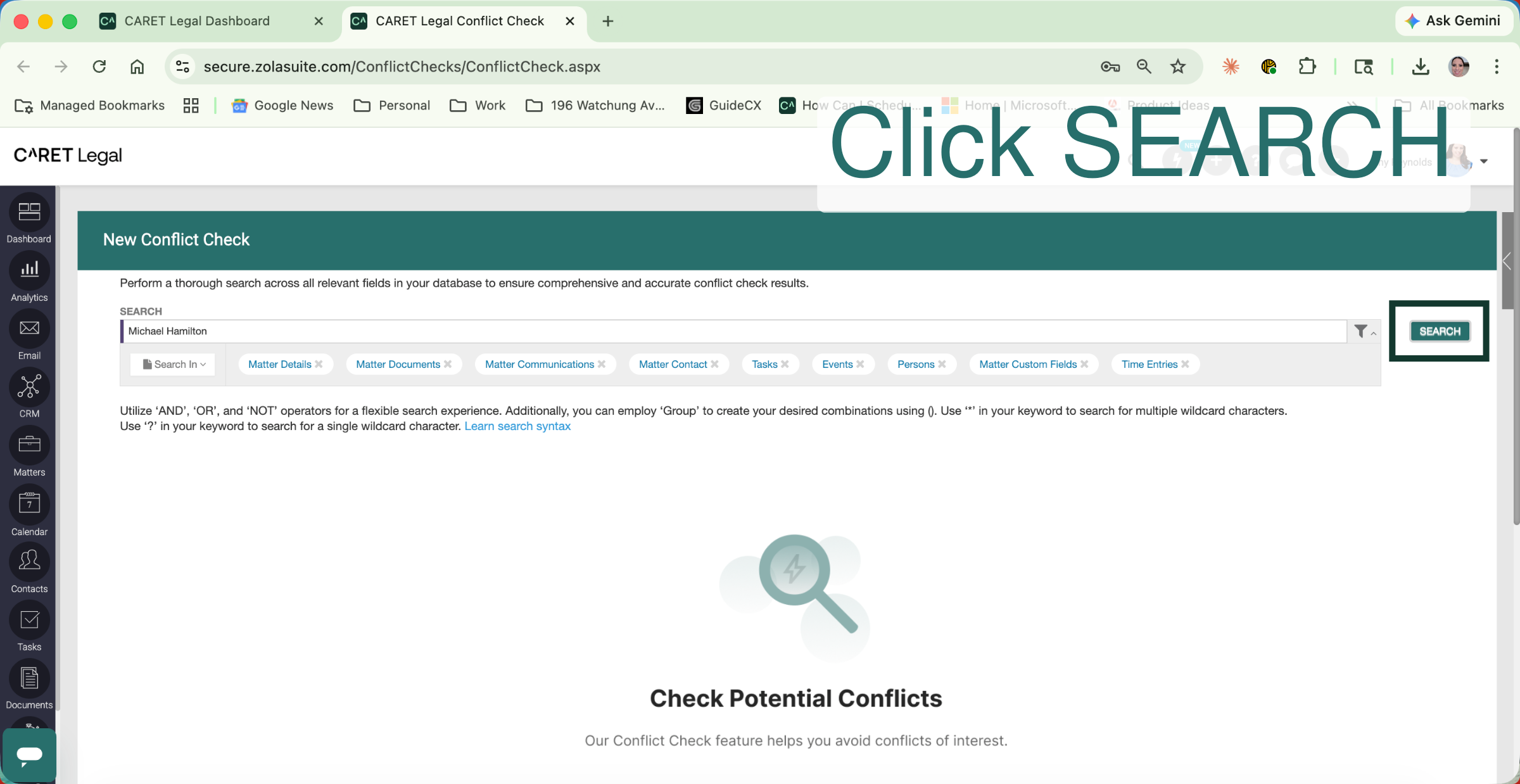
Once you've made your election of the records to be included or excluded in your search head, to the top right corner and click search, this will then yield your conflict search results.
4. Click Link to Continue
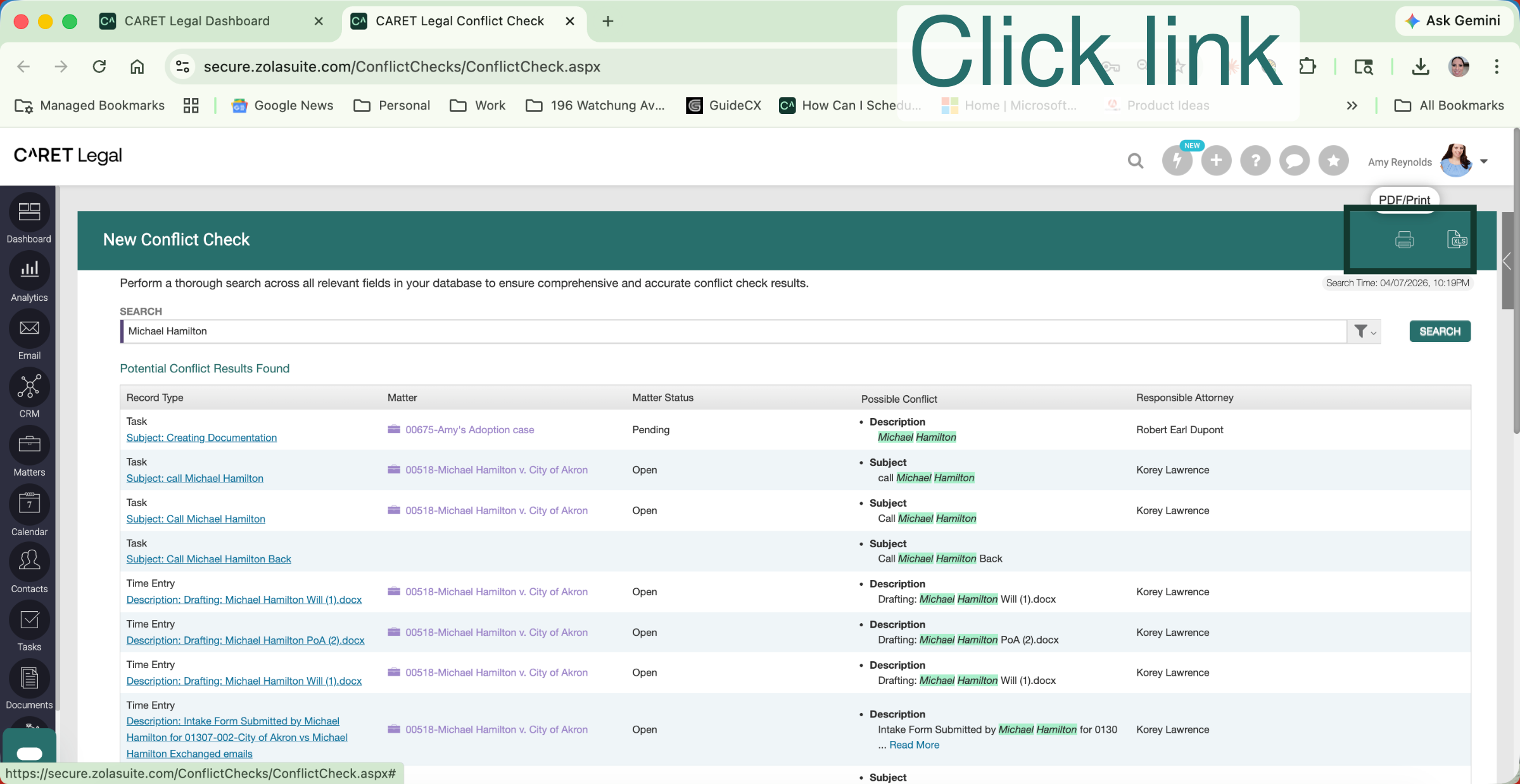
If a potential conflict exists, results of your search will yield these results, will outline the record type matter, name matter status where the potential conflict exists and the responsible attorney for the matter. From here. You can use the links to reach the record or matter or export your findings as a report via PDF or CSV file.
This has been a demonstration of how to use the enhanced conflict. Check feature in CARET Legal. To learn more. Check out our help center or contact our training team by emailing us at training at getcaret.com.