This article aims to provide product knowledge to empower billing and accounting personnel to complete everyday actions in CARET Legal.
The CARET Legal Administrator sets up Billing and Accounting firm settings from Firm Settings > Billing & Accounting.
Following is a description of each group of settings.
- Billing Options. Fundamental billing and workflow options, including the hourly billing increment, starting invoice number, interest, and LEDES.
- Blast Email Options. Sets default email messaging for the Bulk Billing Center. The default can be overwritten by users when generating bulk billing.
- Billing Groups. Defines groups to delineate billing segments (such as departments, third-party LEDES sites, and quarterly billing).
- Time Entry Categories. General work types used for time entries. Each work type may include default narrative text.
- Custom UTBMS Codes. In addition to the standardized UTBMS Code tables, additional custom codes for activities, tasks, and expenses can be added to the code tables.
- Flat-Fee/Service Descriptions. Sets default prices and descriptions for flat fees/services.
- Rate Cards. Sets timekeeper default hourly rates.
- Invoice Customization. Lets firms customize their invoices (logo, fonts, text size, data points, field labels, etc.). Invoice previews are available after one or more invoices have been drafted.
- APX Integration. Firms can complete their merchant onboarding application here. Once their application is approved, they will return here to map their trust and operating bank accounts.
- QuickBooks Integration (Optional). Firms can link their Quickbooks Online (QBO) credentials and establish a one-way sync of receivables from CARET Legal into Quickbooks. If firms use this integration, all accounting data will be in Quickbooks, not CARET Legal.
- Default Soft Costs. Sets default price and description for general administrative expenses billed to the firm's clients.
- Timekeeper Goals. For firms with billable hour goals/requirements, set goals by timekeeper for billed hours or a specific dollar amount.
- PI Expense Categories. Firms using the Personal Injury (PI) module can create categories for the expenses to be recovered at settlement or passed on to the client.
- PI Settlement Memo. Firms using the Personal Injury (PI) module can insert default release language to accompany the settlement memo outlining Recovery, Expenses, and Net to the firms' clients. The text can be adjusted on a document basis when the memo is generated in a Microsoft Word output format.
- Bank Account Permissions. Overrides User Level permissions and gives users access to specific bank accounts for functions like check writing.
Billable Activities
Billable activities in CARET Legal include Time, Flat Fees, Expenses, and Interest.
Time
Time is calculated as duration multiplied by the hourly rate. Rounding may occur depending on the firm's settings (for example, a 6-minute billing increment).
Flat Fees
Flat Fees are calculated with a default quantity of 1 multiplied by a specific rate. If the firm has not entered a preset price, the user can enter the price as the fee is created.
Expenses
There are four types of expenses:
- Soft Costs. Expenses passed on to the client (for example, postage or mileage).
- Hard Cost Check. A matter-related expense that may or may not be passed on to the client. It is a "hard" cost because the firm is still liable for the check clearing.
- Hard Cost Credit Card. A matter-related expense that may or may not be passed on to the client. It is a "hard" cost because the firm is still liable for paying the credit card.
- Vendor Bill Details. An expense to the firm that may be prorated to a client for reimbursement (for example, FedEx deliveries).
Whether or not the expense is billable to the client is dictated by the matter relationship and if the billable checkmark is selected.
Applying Direct Payments to Invoices
When client payments are received, they can be recorded as direct payments applied to one or more invoices.
Watch the following video to learn more about this process.
Contacts
Contacts are critical for bookkeeping and accounting.
To view a contact, click Contacts on the Navigation Bar.
Then, find the contact tile. Click the Actions button and click View/Edit.
The Edit Person window opens with the General tab selected. The General tab includes contact details such as name, address, phone numbers, email address, and more.
The Billing tab on the Edit Person window provides contact-specific details around billing communications and payments.
Let's review the options on the Billing tab.
- DELIVERY PREFERENCE indicates the way the contact wants to receive bills. To use Bulk Billing, set to Email PDF.
- RATE CARD overrides the timekeeper's hourly billing rate. If no value is entered, the timekeeper's default hourly billing rate is used.
- BILLING GROUP lets the contact be included in a specific grouping based on a keyword or phrase.
- When CONSOLIDATE INVOICES is toggled on, billing for the contact's matters will be consolidated into one PDF document. Each matter will have a separate invoice, but the invoices are combined into one PDF document.
- The CHARGE INTEREST toggle is an override on Interest. Once Interest Charging is activated in firm settings, CARET Legal automatically charges interest for overdue invoices based on prescribed settings. Interest charges are created as unbilled expenses at midnight on the day the invoice falls past due.
- INVOICE PRINT TEMPLATES lets firms deviate from the invoice template preference selected for matters.
- Apply Administrative Fee lets you override matter-level settings. Instead ofd charging itemized expenses, CARET Legal creates one expense fee to cover administrative fees such as photocopies, postage, or mileage.
- When APX is activated, APX Payment Methods lets you view, add, or edit payment methods for client invoices or retainer payments.
Matters
Let's look at the accounting and billing information that can be found at the matter level.
NOTE: Role-based and custom permissions will affect the user experience.
Matter Stats
Matter stats are a summary view of the financials around the matter. They are located at the top of the Matter page.
Matter Stats include the following data points:
- HOURS: The total number of hours on the matter.
- INVOICED: The total amount that has been billed for the matter.
- UNINVOICED FEES: The total amount of time and/or flat fee services that have yet to be invoiced.
- UNINVOICED EXPENSES: The total expenses that have yet to be invoiced.
- OPEN: The current outstanding accounts receivable balance on the matter.
- IN TRUST: The current balance of trust retainer funds for the matter.
- OPERATING RETAINER: The current balance of operating retainer funds for the matter.
Time/Expenses Tab
The Time/Expenses tab can be selected at the bottom of the Matter page.
The tab provides a matter-centric view of Time, Flat Fees, Expenses, and Interest. Some users may only see their own time and expense entries depending on role-based permissions. Others see all timekeeper contributions and have options for editing or deleting entries.
Invoices Tab
The Invoices tab can be selected at the bottom of the Matter page.
The tab provides a matter-centric view of invoices and their balances. From this location, users with the appropriate permissions can create invoices, apply direct payments, and create and apply trust or operating retainers. Equivalent to the Invoice & Payments tab in the Accounting module, invoices on this tab can be printed or sent to clients.
Ledger Tab
The Ledger tab can be selected at the bottom of the Matter page.
The tab displays all matter-related transactions relative to the selected bank account.
Payments Tab
The Payments tab can be selected at the bottom of the Matter page.
The tab provides a matter-centric view of all monies paid to the firm and the bank account into which the monies were deposited.
Options Tab
The Options tab can be selected at the bottom of the Matter page.
This tab lets users view and update matter-level settings. The billing and accounting settings found here are based on firm setting defaults and options selected when the matter was created.
The settings on the Options tab override any firm settings, but only for the selected matter.
Here is a short list of billing and accounting fields found on the Options tab:
- Advanced Origination & Responsible Options
- Billing Attorney
- Billing Group
- Billing Type
- Delivery Preference
- Hourly Rate
- Invoice Template
- Billing Increment
- Required Trust Balance
- LEDES Billing (if LEDES Billing is active, additional options will appear)
- PI Module (if PI Module is active, additional options will appear)
- Interest Options
- Rate Cards
-
User Rates
Generating Invoices from Unbilled Activities
- Click Add New Entry on the main toolbar and click New Invoice from Unbilled Activities.
- The Generate Invoice for Hours & Expenses page appears. You can set filters and batch generate or toggle to manually select items and make a more specific selection. Turn on SHOW DETAILS to expand an entry, see the details of the time or expense entry, and edit the original entry.
- Set the invoice options, such as date range, client and/or matter, attorney, type, etc. Check the time entries to include on the invoice. Click Generate Invoice when finished.
- The Generate Invoice window appears. Select the invoice date and due date, and click GENERATE
-
In the Accounting module on the Invoices & Payments tab, a draft of the invoice is listed.
Generating Invoices from Scratch
- Click Add New Entry on the main toolbar and click New Invoice from Scratch.
- The Invoice window appears. Select the matter and click START INVOICE.
- Under Line Items, click Create New (+).
- The Add line item window appears. Enter the information for the invoice line item and click SAVE & NEW to enter more line items. Click SAVE & CLOSE after all line items have been entered.
- Under Line Items, click Create.
-
In the Accounting module on the Invoices & Payments tab, a draft of the invoice is listed.
Reviewing and Approving Invoices
- Invoices cannot be submitted until they are reviewed and approved.
- There is a handy Invoice Options menu on the Invoices & Payments tab in the Accounting module. You can use it to edit, share, and approve invoices.
- Click the Invoice Options button for the invoice you want to work with.
- Let's review each menu option for draft invoices.
- Edit: Opens the invoice so it can be edited.
- Delete: Deletes the invoice.
- Print: Prints the invoice so it can be reviewed or distributed.
- Send as Attachment: Opens an email so the invoice can be emailed as an attachment.
- Send as Attachment w/ Link: Opens an email so the invoice can be emailed as an attachment with a link for payment. This option is typically only used after the invoice is approved.
- Submit for Approval: Changes the invoice status to Pending and moves the invoice to the Pending Approval queue.
- Approve: Changes the invoice status to Not Paid and moves the invoice to the Open queue.
Submitting Invoices for Payment
If the firm uses retainers to pay invoices, the trust or operating retainer is applied to the open invoices. If this does not apply, approved invoices need to be submitted for payment.
Approved invoices have different invoice options. On the Invoices & Payments tab in the Accounting module, click the Invoice Options button for the approved invoice you want to work with.
Email Submission
To email an invoice, use the following invoice options:
- Send as an Attachment opens an email with the invoice attached as a PDF file.
- Send as Attachment w/ Link also opens an email with the invoice attached as a PDF file. But the email also includes a unique, secure URL (called a Pay Now link) for processing a payment quickly and easily with APX (Abacus Payment Exchange). The payment link shows the client all balances and lets them select the invoice(s) to be paid. Using the Pay Now link saves the firm administrative time as the invoice in CARET Legal is updated to reflect the payment made and show a deposit on the bank register.
Watch the following video to learn how to send invoices using a Pay Now link.
Client Portal Submission
Use the Share via Portal invoice option to share the invoice with the client through their CARET Legal client portal.
Regular Mail Submission
Use the Print invoice option to print the invoice and send it through regular mail.
Bulk Billing Center
The Bulk Billing Center is a great way to quickly and easily send multiple invoices simultaneously via email or regular mail.
The Bulk Billing Center requires setup by the firm and CARET. Your implementation team will help set up the feature.
To open the Bulk Billing Center, click Bulk Billing Center on the Invoices & Payments tab in the Accounting module.
The Bulk Billing Center window opens. Complete the settings for the bulk invoicing and click NEXT.
More options appear. Complete these and click NEXT.
Invoices to be sent based on the criteria completed are listed. Click NEXT.
The next page lets you review the default Bulk Billing Email message. Two merge fields (RecipientName and PaymentLink) are included to allow the firm to customize the messaging used when communicating the invoice.
Note that if you send a Statement of Accounts, you cannot send it with a Pay Now link.
Click BLAST & CLOSE.
The invoices are sent.
- If sent via email, the emails are broken down into smaller batches so the firm's domain does not get blacklisted as spam.
- If sent via regular mail, a ZIP file containing one PDF of all invoices for printing and mailing can be downloaded.
When the process has concluded, a confirmation email with a copy of the invoice batch is sent.
To help with tracking, the View Batch Invoice can be used to check the status of the process or to refer to a completed batch.
Trust Management
Creating Trust/Retainer Payments
The first step in Trust Management is to create a Trust/Retainer Payment or Retainer Request.
The following video demonstrates the process.
Applying Trust Retainers
Once a trust/retainer payment is made, the funds can be applied to invoices.
1. In the Accounting module on the Invoice & Payments tab, click the Additional Options button (+) and click Apply Trust/Retainer.
2. The Apply Retainer or Deposit to Invoice(s) window appears. Enter the information for the payment. Be sure to select the applicable invoice. Click APPLY FUNDS.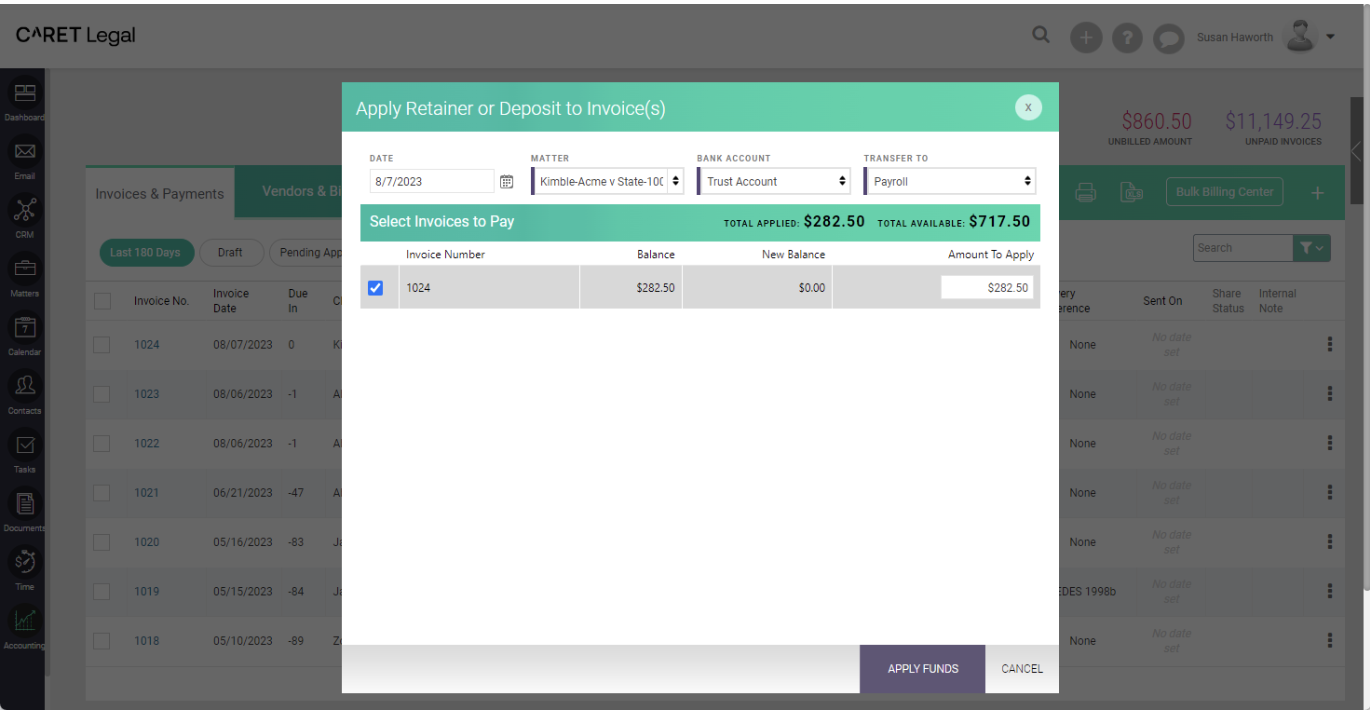
Paying Vendor Bills (Accounts Payables)
Watch the following video to learn how to enter and pay vendor bills in CARET Legal.
Banks & Registers Tab
The Banks & Registers tab with CARET Legal's Accounting module is where the firm can manage most accounting functions. While Invoice & payments manage Accounts Receivable (AR) and Vendors & Bills manage Accounts Payable (AP), Banks & Registers give you back office functions like check writing and printing, bank feed syncs, and account reconciliations. Above is a screenshot of what Banks & Registers look like. Below is a screenshot of the features in this location.
Syncing and Reconciling Accounts
The following video demonstrates how to synchronize and reconcile accounts in CARET Legal.
What's Next...
As you begin working within CARET Legal, additional questions or concerns will likely arise, and we want to help.
- Onboarding Specialist. You should have received a personalized welcome email from your Onboarding Specialist. Contact your Onboarding Specialist directly or through onboarding@getcaret.com.
- Learning Library. When you are ready to learn more, explore our Learning Library for other courses and topics.