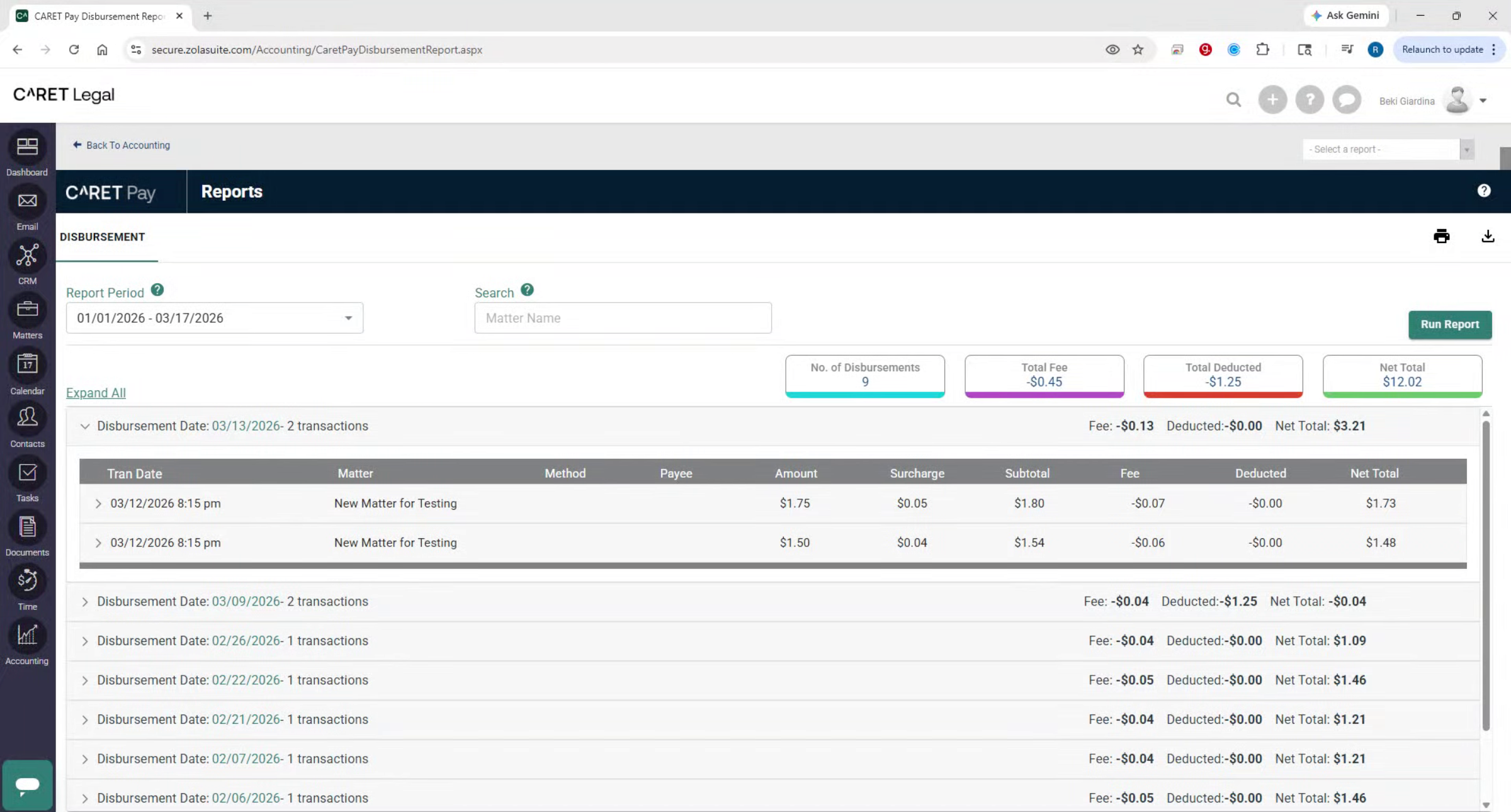
This video demonstrates how to access and run CARET pay reports.
1. Login And Navigation
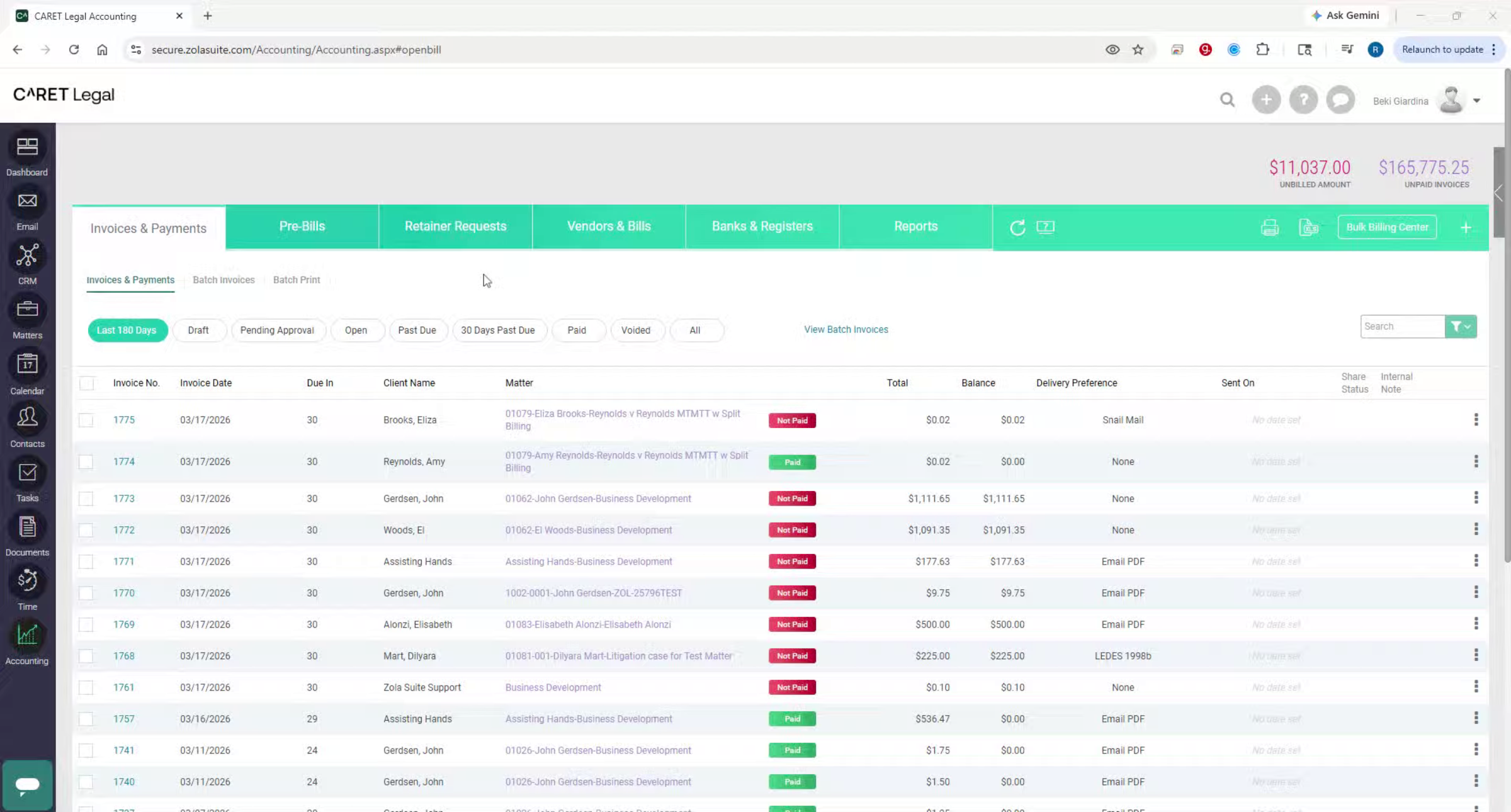
Begin by logging into your CARET Legal account. From the bottom left corner of the screen, navigate to Accounting. Once in Accounting, select the Reports tab located in the green banner. Under this tab, locate the CARET Pay Reports filter.
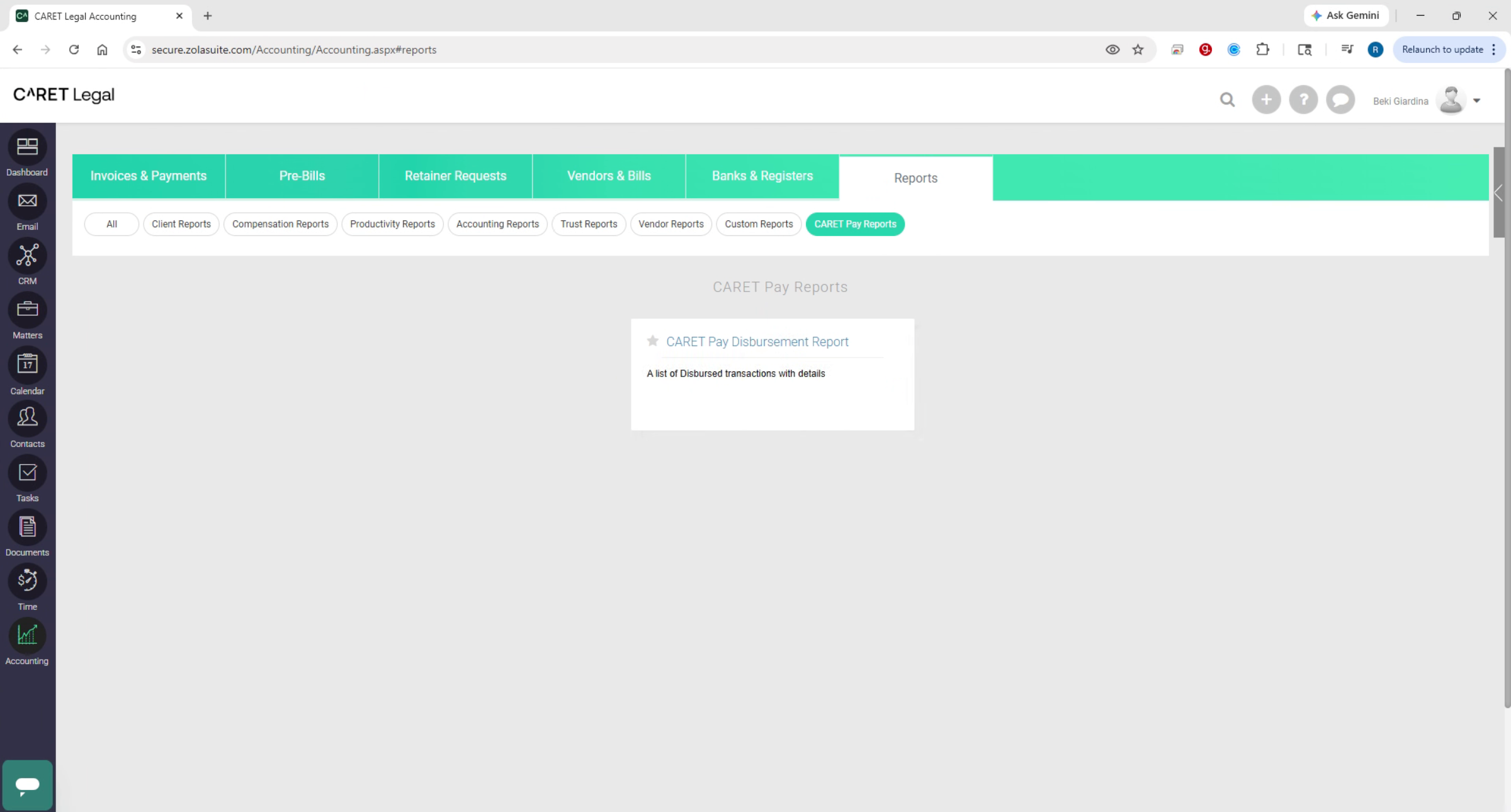
2. Selecting CARET Pay Report
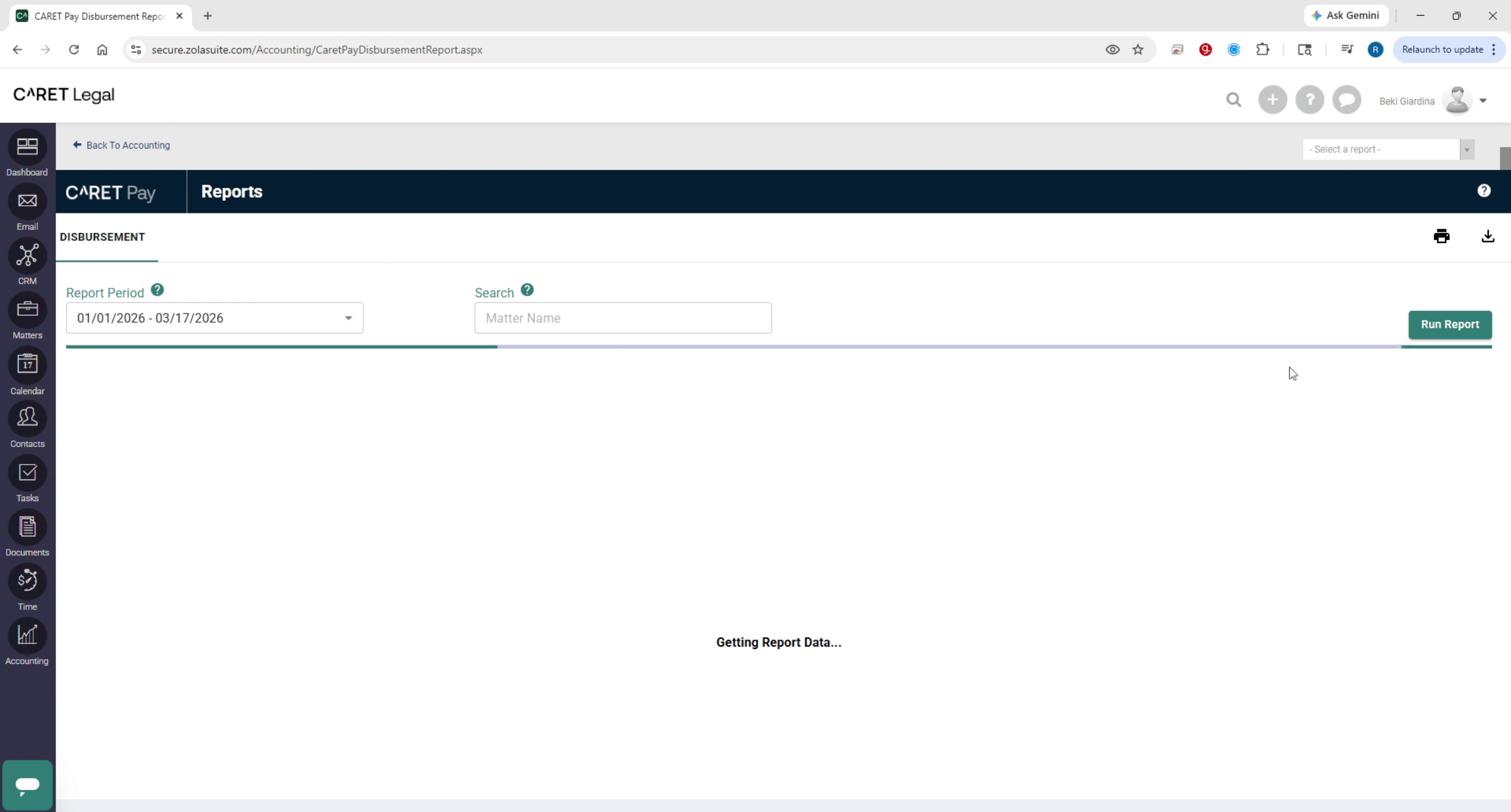
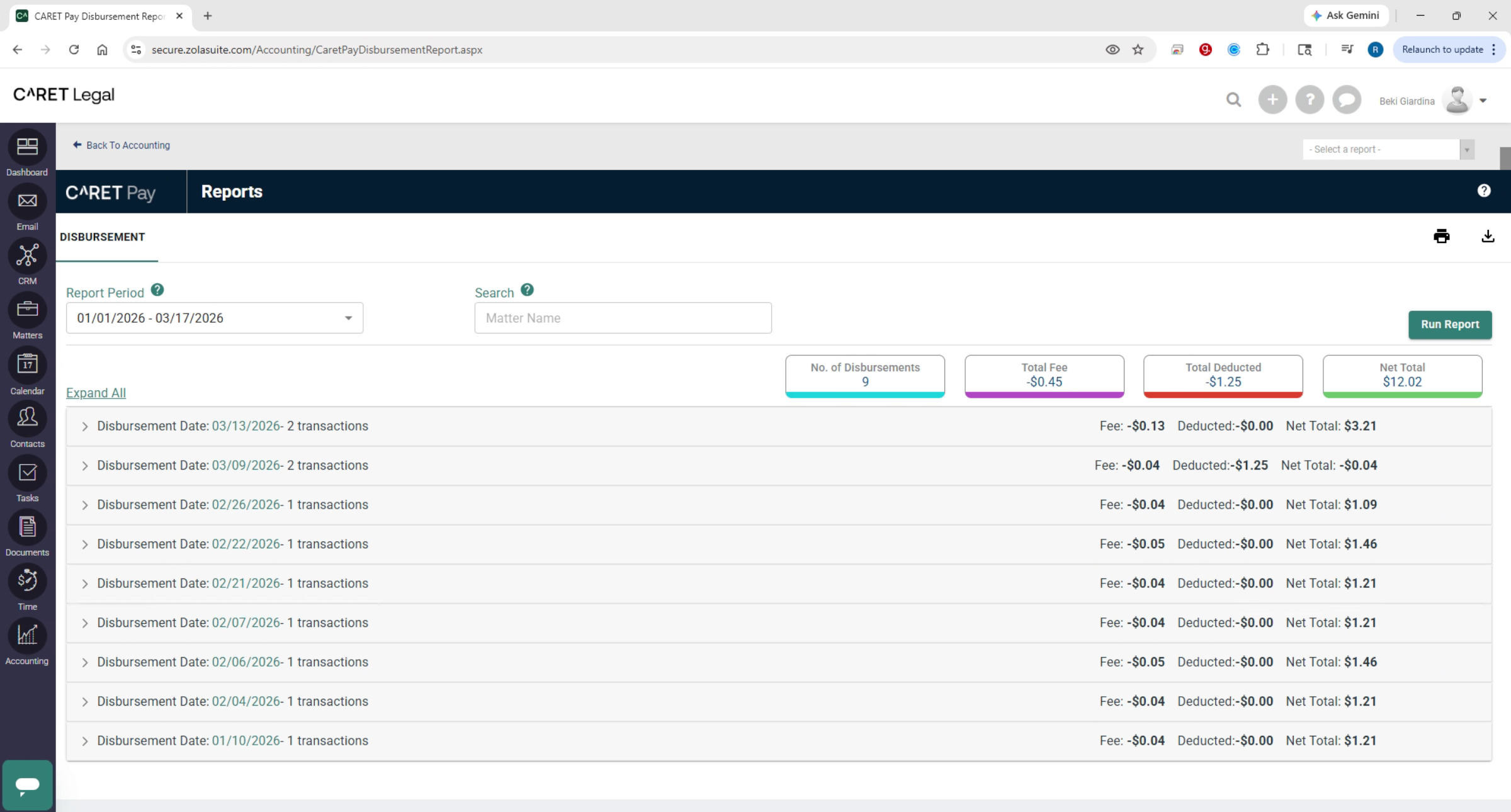
Select the CARET Pay Disbursement Report by clicking on the report name tile. On the report screen, choose the desired reporting period. You may select from preset date ranges or enter a custom date range and click Apply. At the top of this page, click Run Report to generate the report.
3. Reviewing Report Summary
The summary totals will appear at the top, followed by daily disbursement entries showing the number of transactions, associated fees, and net totals.
4. Viewing Transaction Details
Use the expand arrow on the left to view individual transactions, including payment details, amounts, fees, and net totals. To
5. Exporting And Printing Report
Export the report, navigate to the top right corner, and select the printer icon to print your report or the download icon to export the report in PDF or Excel format.